
How to add a film roll transition to your edit
How to add a film roll transition to your edit
Updated on
Want to add a film roll transition to your edit, but all the Adobe Premiere and DaVinci Resolve tutorials you've watched look too complicated? We've got you covered.
elevate.io is the online video editor that makes it super easy to add beautiful film strip transitions in between your clips. No downloading third-party assets, adding complicated adjustment layers, or creating complex timelines with overlaying clips — just drag and drop our film transition in between two clips and you're done.
We'll show you how to add a film roll transition, like the one at the top of this article, in just a few simple steps.
How to add a film roll transition to your edit
Our film strip transition is a premium transition. Unlock access to all our premium transitions from just $10 per month.
Subscribing to elevate.io supercharges your online video editing with unlimited 4K Ultra HD exports, up to 2.5 TB of cloud storage, monthly tokens for Epidemic Sound music and AI tools, color LUTs, and much more. Explore our subscription plans and discover which one best suits your content creation goals.
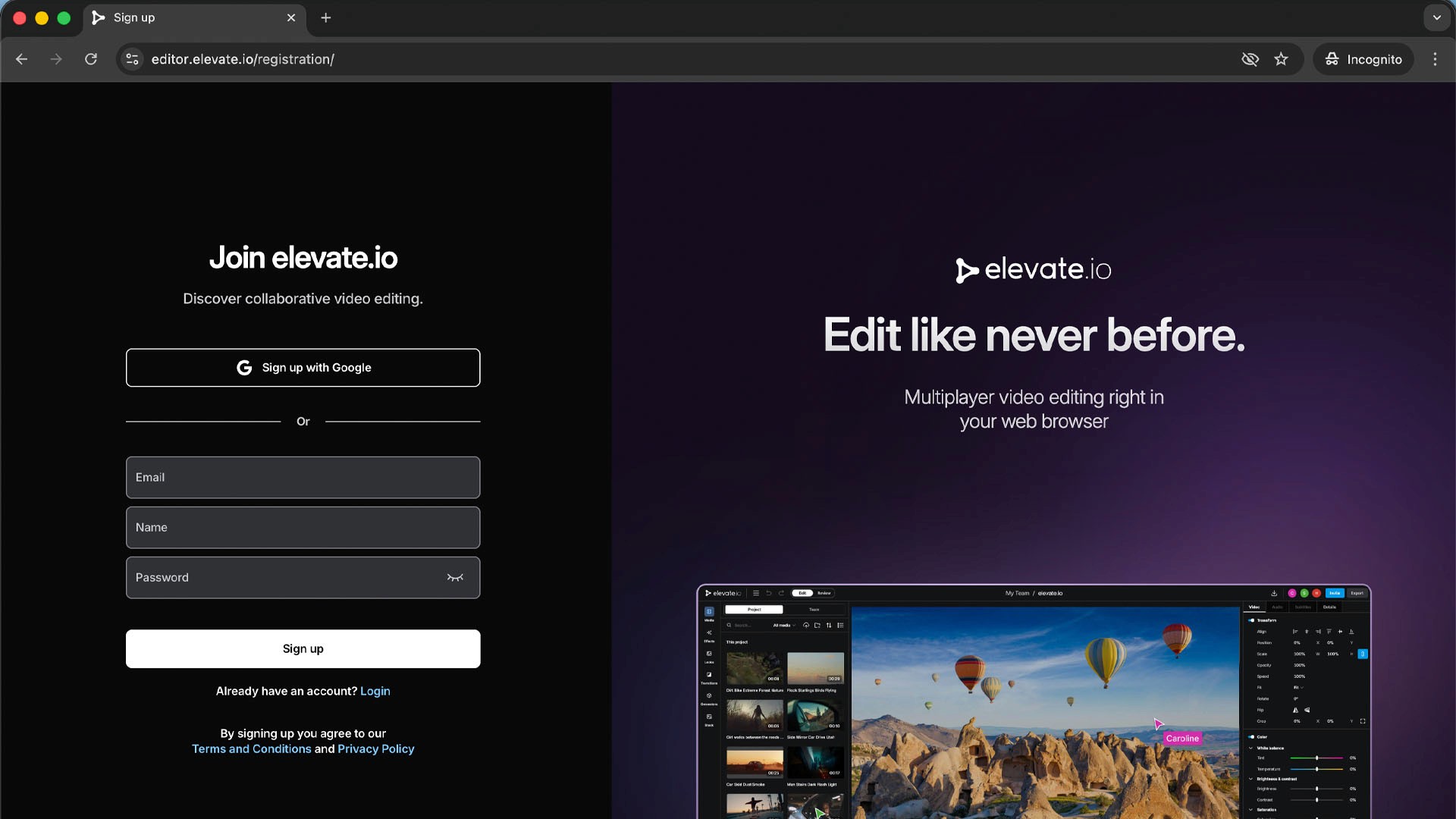
Sign up to elevate.io for free
You can subscribe to any of our plans to unlock all premium transitions.
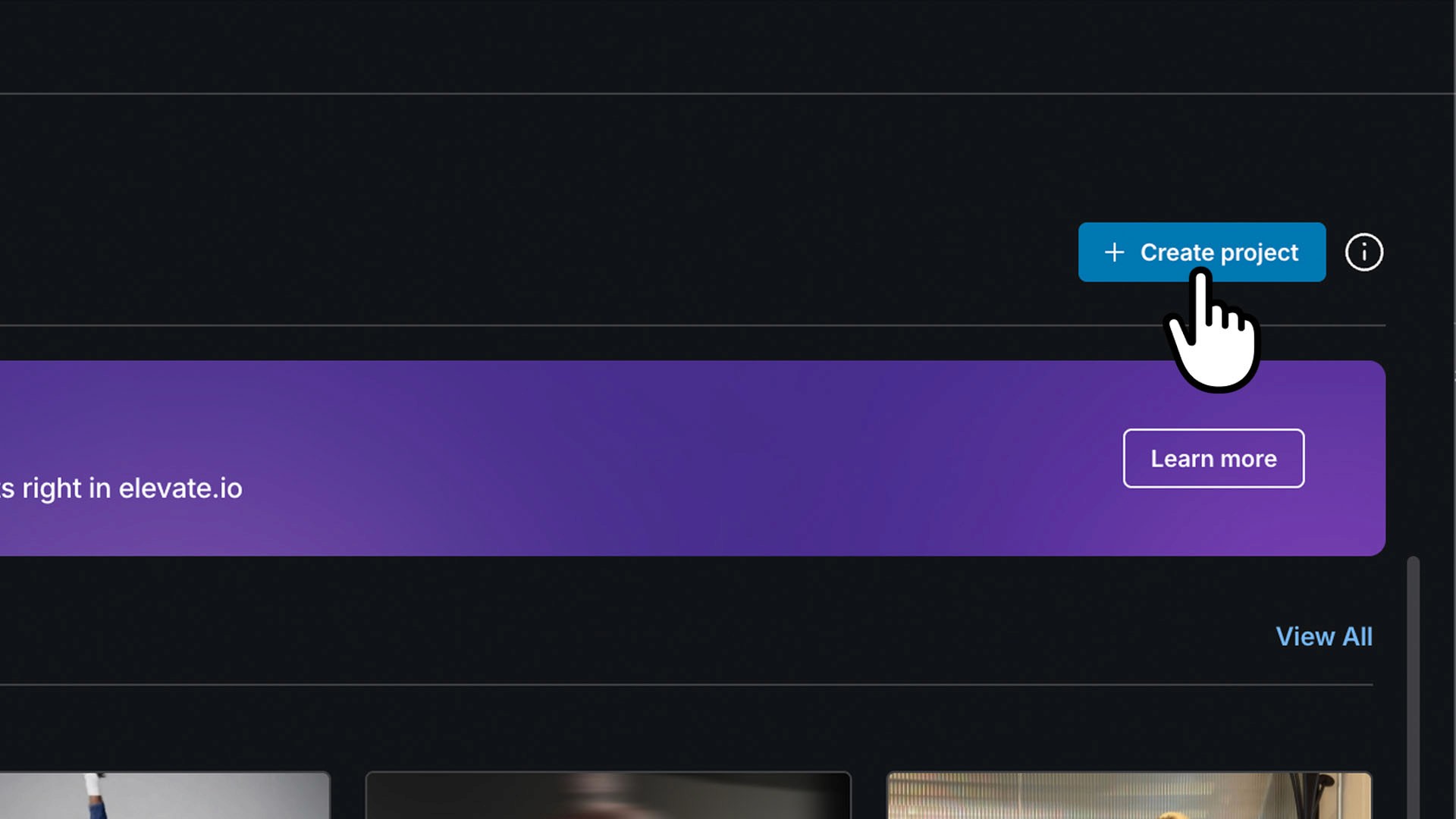
Create a new project
Click the blue Create project button in the top right of the editor.
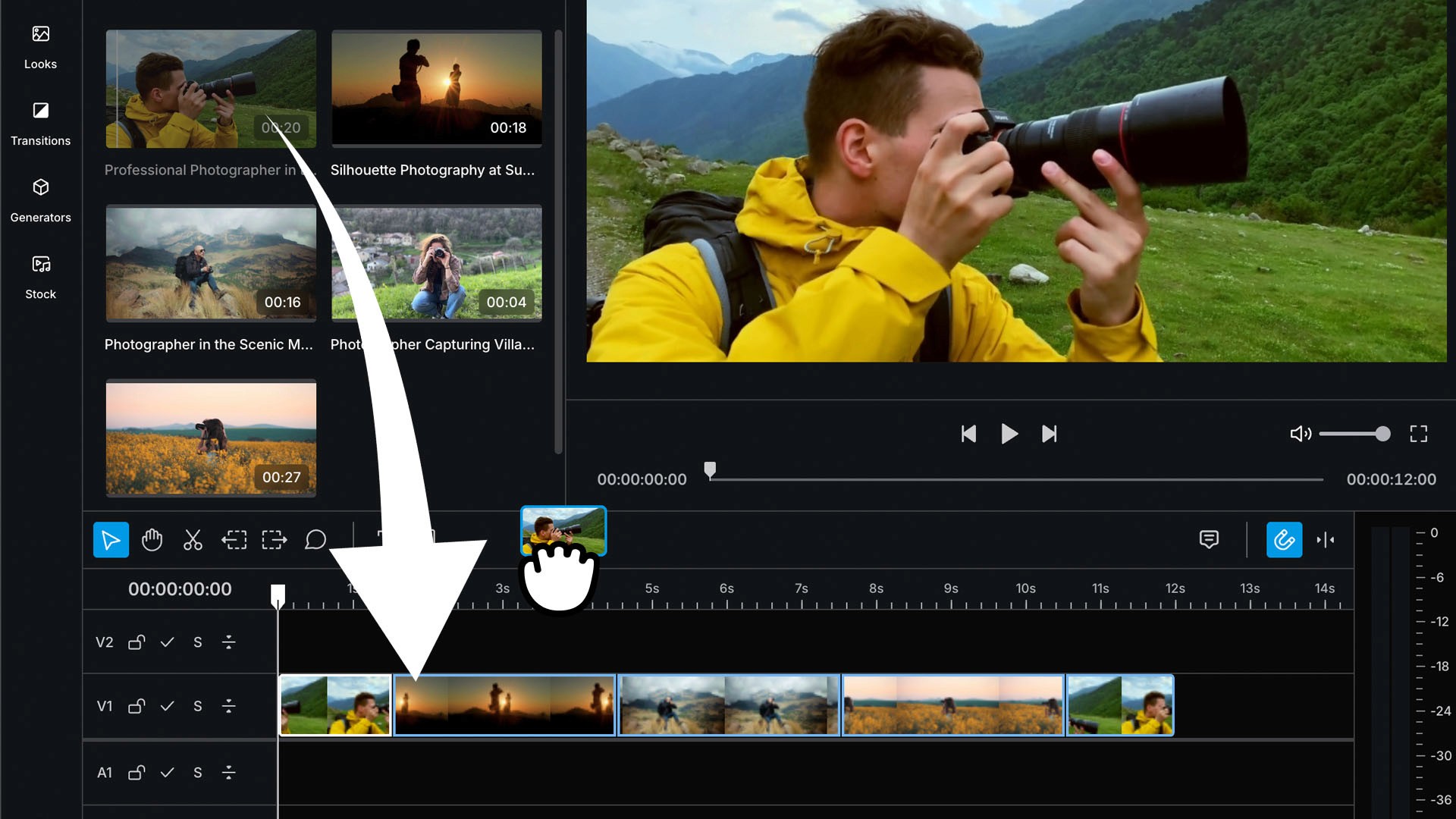
Add your footage to the timeline
Upload your footage and drag and drop clips onto the timeline.
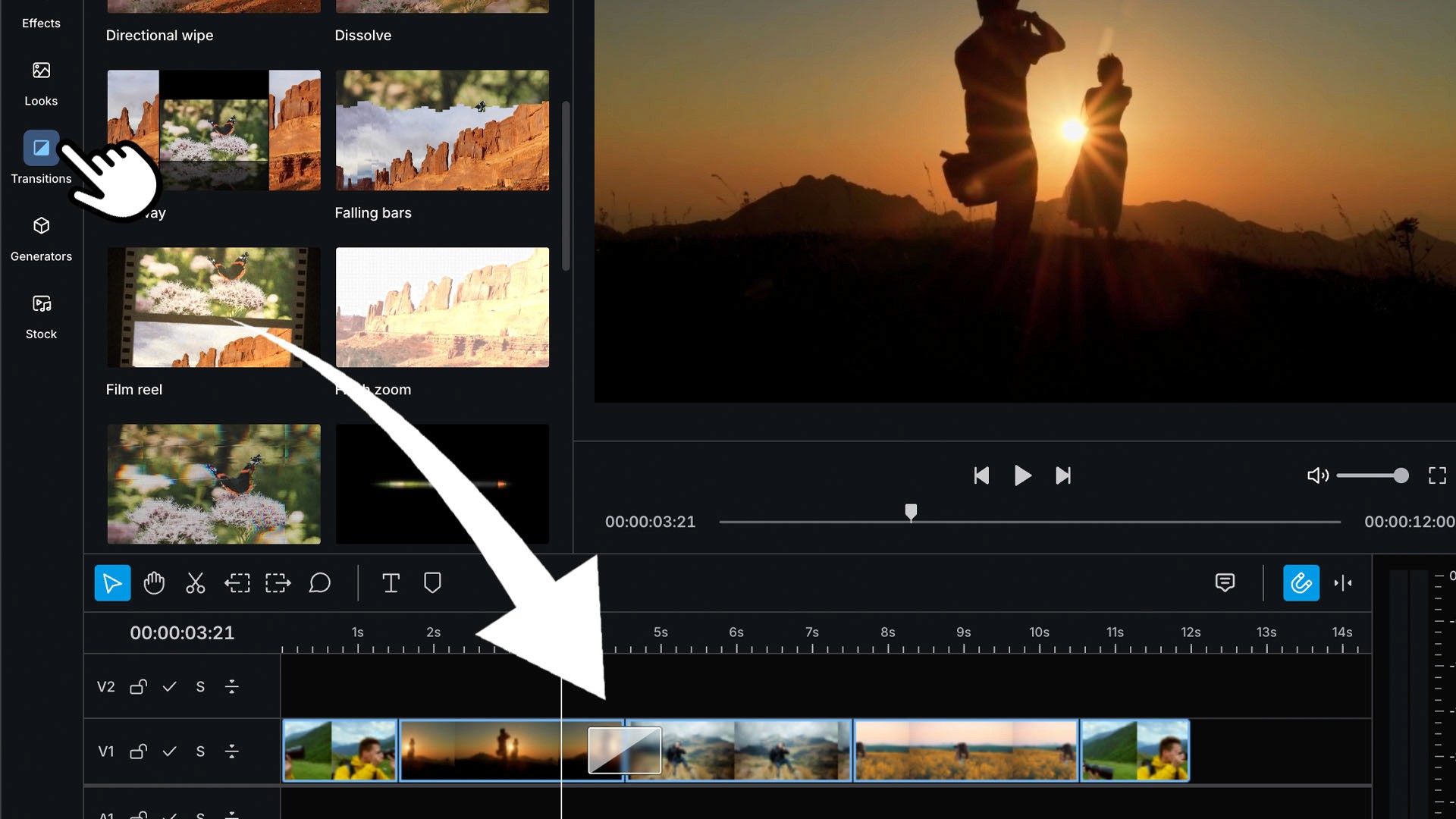
Drag the Film reel transition in between your clips
Go to the Transitions tab and drag the Film reel transition between your clips.
It's that easy to add a beautiful film roll transition to your videos in elevate.io.
Customize the look
It's simple to customize the look of your film roll transition. Just select the transition you want to customize on the timeline and go to the Inspector panel on the right.
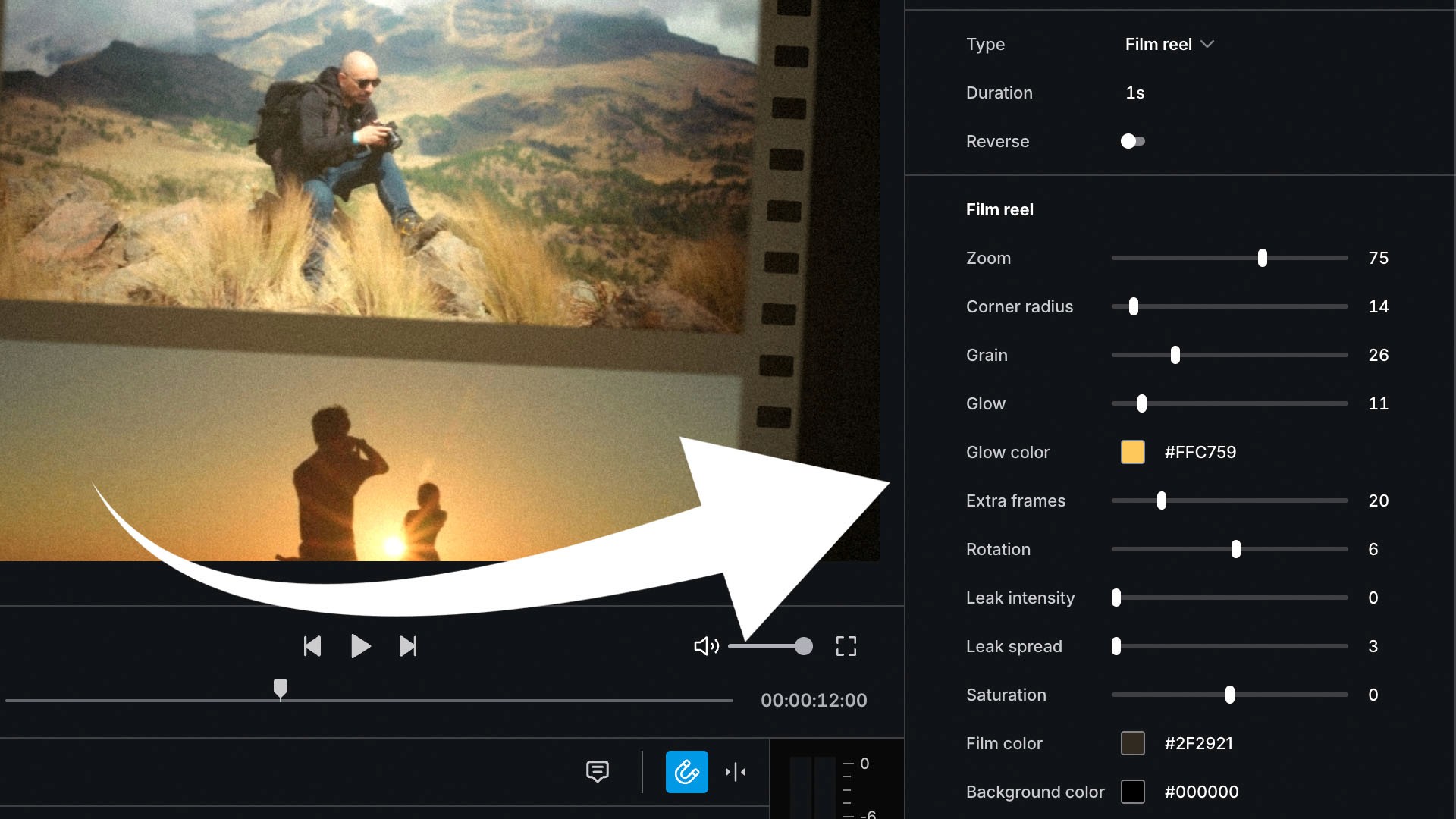
Change the zoom, grain, glow, rotation, film color, and much more with simple slider controls to craft the perfect film roll transition for your video.
Want to add a film roll transition to your edit, but all the Adobe Premiere and DaVinci Resolve tutorials you've watched look too complicated? We've got you covered.
elevate.io is the online video editor that makes it super easy to add beautiful film strip transitions in between your clips. No downloading third-party assets, adding complicated adjustment layers, or creating complex timelines with overlaying clips — just drag and drop our film transition in between two clips and you're done.
We'll show you how to add a film roll transition, like the one at the top of this article, in just a few simple steps.
How to add a film roll transition to your edit
Our film strip transition is a premium transition. Unlock access to all our premium transitions from just $10 per month.
Subscribing to elevate.io supercharges your online video editing with unlimited 4K Ultra HD exports, up to 2.5 TB of cloud storage, monthly tokens for Epidemic Sound music and AI tools, color LUTs, and much more. Explore our subscription plans and discover which one best suits your content creation goals.
Sign up to elevate.io for free
You can subscribe to any of our plans to unlock all premium transitions.
Create a new project
Click the blue Create project button in the top right of the editor.
Add your footage to the timeline
Upload your footage and drag and drop clips onto the timeline.
Drag the Film reel transition in between your clips
Go to the Transitions tab and drag the Film reel transition between your clips.
It's that easy to add a beautiful film roll transition to your videos in elevate.io.
Customize the look
It's simple to customize the look of your film roll transition. Just select the transition you want to customize on the timeline and go to the Inspector panel on the right.
Change the zoom, grain, glow, rotation, film color, and much more with simple slider controls to craft the perfect film roll transition for your video.