7 tips to organize video files for faster edits
7 tips to organize video files for faster edits
Updated on
Most of the guides you find online about organizing video files are written with post-production studios in mind - ones with dedicated media asset managers, proxy workflows, and pipelines. But if you are an in-house marketer producing campaign content, social cuts, and product videos (without a media manager on staff), that advice isn’t for you.
Instead, try this: seven practical things that will stop your team from losing files, second-guessing which export is the most current one, and starting every project trawling through Slack looking for the original footage.
1. Set your naming convention before you start
The moment you start calling your file something along the lines of clip01.mp4 or project_edit1, or rough_cut…you’ve committed to confusion. Renaming and relabeling everything later hardly ever happens, and if it does, it can make things even worse.
Decide on a structure upfront, e.g. [Client/Campaign]_[ContentType]_[Date]_[Version]. The result will look like this: BrandLaunch_SocialCut_2026-08-01_v1.
The date in YYYY-MM-DD format sorts correctly in any file system, while the version number at the end makes the sequence clear. Anyone who joins the project later (including a freelancer who jumps in three weeks in) can read the filename and understand where it sits in the timeline.
The only rule? Pick one convention and make sure the entire team uses it consistently.
2. Keep one working file in one location
Video edits don’t become chaotic because of bad editing. Problems creep in when the edit lives in five different places simultaneously: one on the editor’s laptop, one in a shared drive, a third exported and sent over Slack for someone to download. Then a fourth version gets re-uploaded after amends. By the time a stakeholder has approved something, no one can be exactly sure which file is the approved one.
Instead, keep working on one file in one location that everyone can access directly instead of one that gets exported and passed around. When a project lives in a shared cloud workspace, there is no back-and-forth, and everyone is always looking at the same file.
Try elevate.io and work from one source of truth
3. Let recovery history do the heavy lifting (not your filenames)
If your filenames regularly include words like FINAL, REALFINAL, APPROVED or amends_v2, your version control is not functioning effectively. Labels can accumulate quickly but won’t clearly spell out which file is actually current.
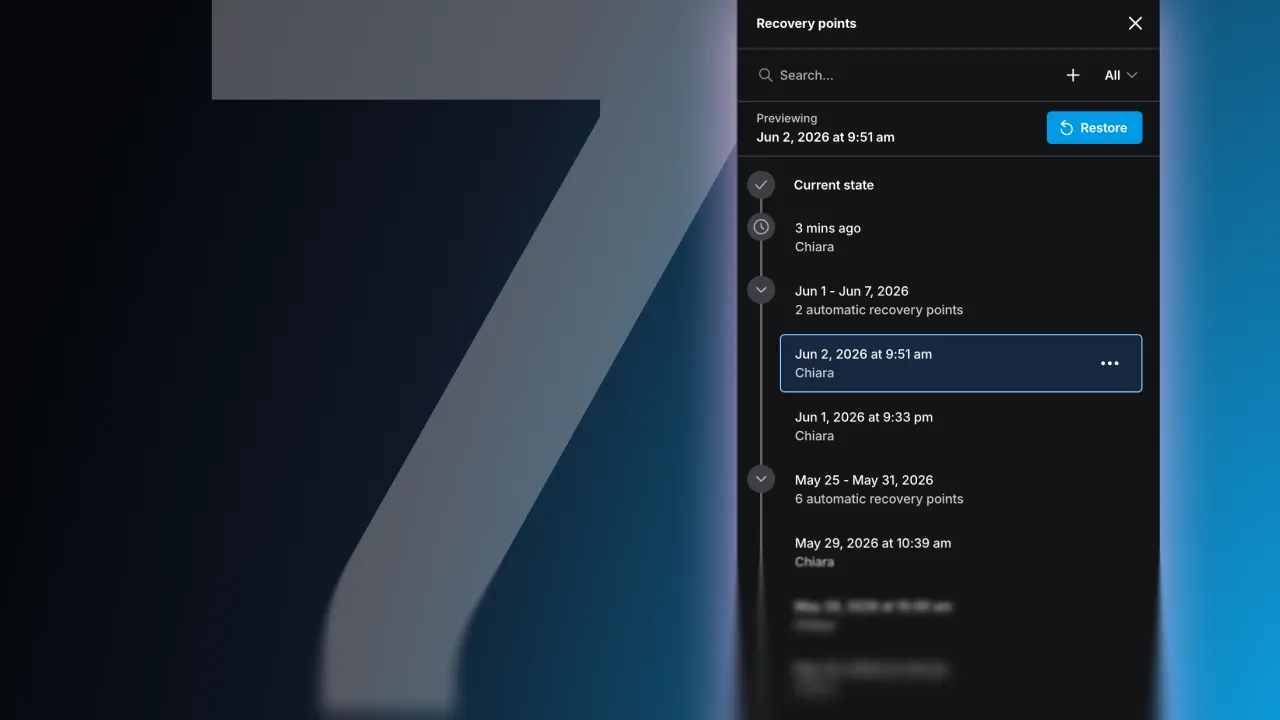
A better alternative is a project that keeps its own history automatically, so you can roll back to any point without creating a new file. This is what recovery points in elevate.io do: the project saves automatically as you work, and you can browse the full history and restore any earlier state in a single click.
Your filename stays clean, the project is the only project everyone is looking at, and the version history resides inside it (not appended to the filename).
4. Centralize footage and cuts in a single shared workspace
When footage lives across a laptop, a shared drive, someone’s downloads folder, and an email attachment from the client, two things are bound to happen. First, the edit will be slow because finding the right file takes longer than it should. Secondly, the handoff will be tricky because the next person to work on it has to locate everything from scratch (and double-check that they’re working on the latest version).
A shared media library (i.e. one that everyone from the team accesses from the same workspace) removes both problems. When footage is uploaded once and stored centrally, anyone can pick up the project, find the assets, and start working immediately.
This can be particularly useful if you are working on a campaign where raw footage has to be used to produce multiple outputs, e.g. a long-form cut for YouTube, a 30-second social version, a vertical short, a version with subtitles, or a version for a different market. Everything should trace back to the same centralized source.
5. Label by status (not just filenames)
Filenames tell you what something is, but status will tell you which stage it’s at. Add a simple status layer to your workflow:
Draft: in progress, not ready for feedback
In review: sent for stakeholder feedback, awaiting notes
Approved: signed off, do not edit
You can use this in a folder, a label in your project management tool, or a status field in your media library. You can use any convention that makes sense, as long as it's not implicit or vague.
When a stakeholder asks “is this the version I’ve approved?” the answer should be findable in less than 10 seconds.
Give every stakeholder one place to find the current version
Version confusion usually kicks in when the editor shares the export, the stakeholder downloads it, a new version is produced, and now the downloaded copy is outdated (without the stakeholder knowing).
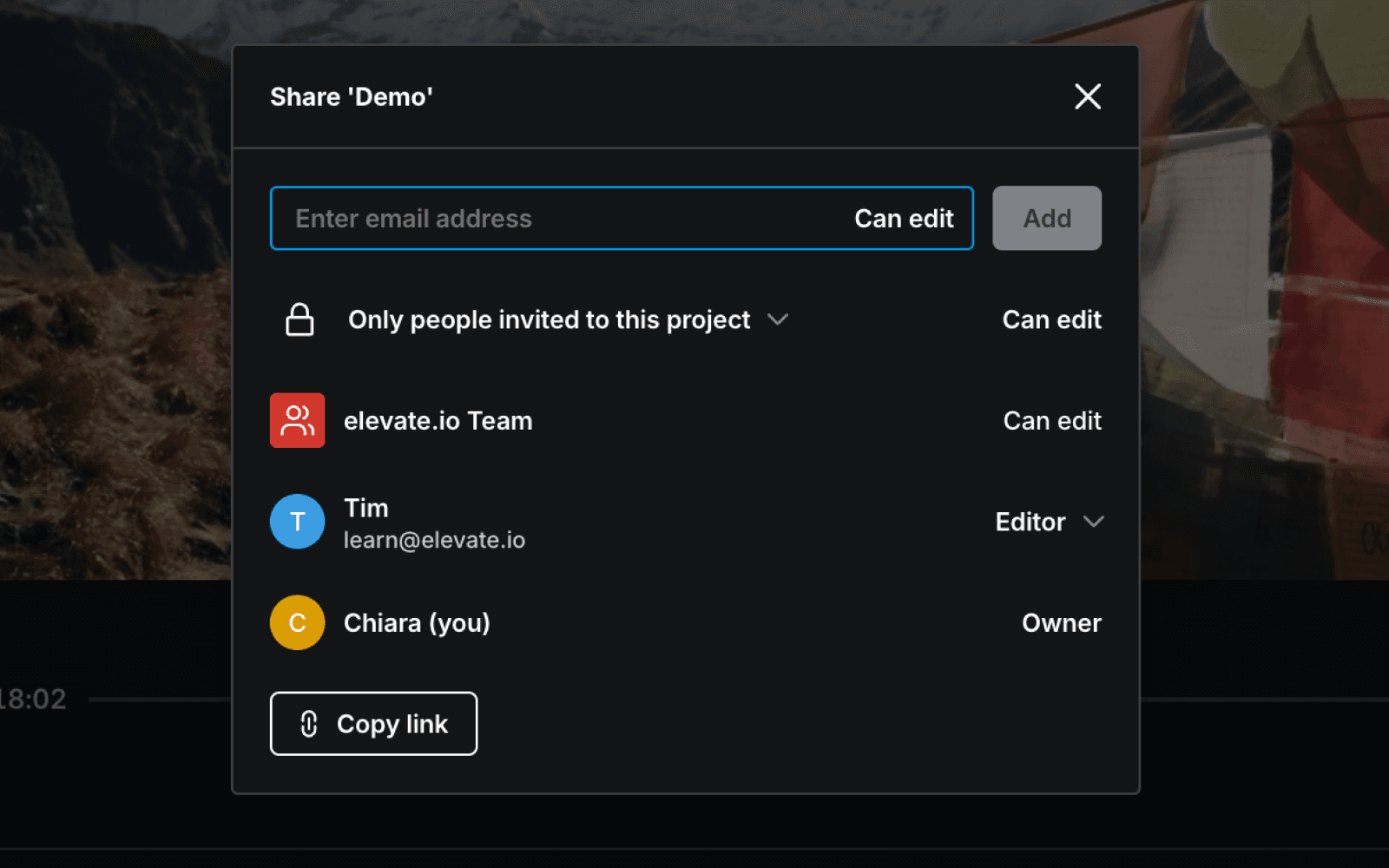
You need a permanent link that always points to the current version of the project. In elevate.io, every project lives under one URL. When the edit is updated, anyone with access opens the same link and sees the most current version automatically. There’s no resharing, no risk of anyone reviewing or commenting on an old cut, and no “can you send me the latest?” email chains.
It seems simple, but it can save a lot of time when multiple stakeholders need to weigh in before sign-off.
7. Build handoff into the process when freelancers are involved
Introducing a freelancer to a project means introducing a new person who has to reconstruct the project from whatever assets they can find. If the brief, the footage, the current cut and the feedback arrive separately (e.g. via email, Slack, WeTransfer, and a shared folder link), the freelancer’s first hour on the job is usually sifting through notes and double-checking that they are looking at the right file.
Instead, handoff should be built into the project itself. When the project, footage, and media library live in one shared workspace, onboarding a freelancer means inviting them in, not assembling the brief and hoping the folder structure makes sense to someone who wasn’t there when the project started.
The same applies at the end of the engagement. When the freelancer hands work back, it should land in the shared workspace and not a new folder of exports that someone has to sort through and investigate.
Frequently asked questions
How can I organize video content versions to avoid confusion?
Move away from version-in-file naming (e.g. final_v3_REALFINAL.mp4) and to working on projects with built-in recovery history. When your editing tool saves recovery points automatically, you can roll back to any earlier state without creating a new file. Keep one working file in one location, use a clear status label (draft/in review/approved) rather than encoding the status in the filename. Give every stakeholder a permanent link to the current version, rather than a downloaded export.
What are the best tools for organizing multiple video edits without confusion?
In-house teams should use a browser-based video editor with a shared media library and built-in version history. Footage, cuts, and feedback all live in one place rather than being distributed across drives, inboxes, and shared folders. elevate.io combines the editor, team media library, recovery points, and a review workflow in one workspace, which removes most of the friction that produces file confusion. For teams with more complex asset management needs, dedicated MAM tools exist, but they're built for post-production studios rather than marketing teams.
What are the best cloud storage solutions for collaborative video editing workflows?
General-purpose cloud storage (Google Drive, Dropbox, OneDrive) provides access but doesn’t resolve the version problem. Files can be shared, but there's no way to know which copy is current, and downloading creates new local versions that diverge from the original. A video-specific cloud workspace where the project itself is the shared file removes that problem entirely. elevate.io stores all projects and media in the cloud, so everyone on the team works from the same source rather than from downloaded copies.
Most of the guides you find online about organizing video files are written with post-production studios in mind - ones with dedicated media asset managers, proxy workflows, and pipelines. But if you are an in-house marketer producing campaign content, social cuts, and product videos (without a media manager on staff), that advice isn’t for you.
Instead, try this: seven practical things that will stop your team from losing files, second-guessing which export is the most current one, and starting every project trawling through Slack looking for the original footage.
1. Set your naming convention before you start
The moment you start calling your file something along the lines of clip01.mp4 or project_edit1, or rough_cut…you’ve committed to confusion. Renaming and relabeling everything later hardly ever happens, and if it does, it can make things even worse.
Decide on a structure upfront, e.g. [Client/Campaign]_[ContentType]_[Date]_[Version]. The result will look like this: BrandLaunch_SocialCut_2026-08-01_v1.
The date in YYYY-MM-DD format sorts correctly in any file system, while the version number at the end makes the sequence clear. Anyone who joins the project later (including a freelancer who jumps in three weeks in) can read the filename and understand where it sits in the timeline.
The only rule? Pick one convention and make sure the entire team uses it consistently.
2. Keep one working file in one location
Video edits don’t become chaotic because of bad editing. Problems creep in when the edit lives in five different places simultaneously: one on the editor’s laptop, one in a shared drive, a third exported and sent over Slack for someone to download. Then a fourth version gets re-uploaded after amends. By the time a stakeholder has approved something, no one can be exactly sure which file is the approved one.
Instead, keep working on one file in one location that everyone can access directly instead of one that gets exported and passed around. When a project lives in a shared cloud workspace, there is no back-and-forth, and everyone is always looking at the same file.
Try elevate.io and work from one source of truth
3. Let recovery history do the heavy lifting (not your filenames)
If your filenames regularly include words like FINAL, REALFINAL, APPROVED or amends_v2, your version control is not functioning effectively. Labels can accumulate quickly but won’t clearly spell out which file is actually current.
A better alternative is a project that keeps its own history automatically, so you can roll back to any point without creating a new file. This is what recovery points in elevate.io do: the project saves automatically as you work, and you can browse the full history and restore any earlier state in a single click.
Your filename stays clean, the project is the only project everyone is looking at, and the version history resides inside it (not appended to the filename).
4. Centralize footage and cuts in a single shared workspace
When footage lives across a laptop, a shared drive, someone’s downloads folder, and an email attachment from the client, two things are bound to happen. First, the edit will be slow because finding the right file takes longer than it should. Secondly, the handoff will be tricky because the next person to work on it has to locate everything from scratch (and double-check that they’re working on the latest version).
A shared media library (i.e. one that everyone from the team accesses from the same workspace) removes both problems. When footage is uploaded once and stored centrally, anyone can pick up the project, find the assets, and start working immediately.
This can be particularly useful if you are working on a campaign where raw footage has to be used to produce multiple outputs, e.g. a long-form cut for YouTube, a 30-second social version, a vertical short, a version with subtitles, or a version for a different market. Everything should trace back to the same centralized source.
5. Label by status (not just filenames)
Filenames tell you what something is, but status will tell you which stage it’s at. Add a simple status layer to your workflow:
Draft: in progress, not ready for feedback
In review: sent for stakeholder feedback, awaiting notes
Approved: signed off, do not edit
You can use this in a folder, a label in your project management tool, or a status field in your media library. You can use any convention that makes sense, as long as it's not implicit or vague.
When a stakeholder asks “is this the version I’ve approved?” the answer should be findable in less than 10 seconds.
Give every stakeholder one place to find the current version
Version confusion usually kicks in when the editor shares the export, the stakeholder downloads it, a new version is produced, and now the downloaded copy is outdated (without the stakeholder knowing).
You need a permanent link that always points to the current version of the project. In elevate.io, every project lives under one URL. When the edit is updated, anyone with access opens the same link and sees the most current version automatically. There’s no resharing, no risk of anyone reviewing or commenting on an old cut, and no “can you send me the latest?” email chains.
It seems simple, but it can save a lot of time when multiple stakeholders need to weigh in before sign-off.
7. Build handoff into the process when freelancers are involved
Introducing a freelancer to a project means introducing a new person who has to reconstruct the project from whatever assets they can find. If the brief, the footage, the current cut and the feedback arrive separately (e.g. via email, Slack, WeTransfer, and a shared folder link), the freelancer’s first hour on the job is usually sifting through notes and double-checking that they are looking at the right file.
Instead, handoff should be built into the project itself. When the project, footage, and media library live in one shared workspace, onboarding a freelancer means inviting them in, not assembling the brief and hoping the folder structure makes sense to someone who wasn’t there when the project started.
The same applies at the end of the engagement. When the freelancer hands work back, it should land in the shared workspace and not a new folder of exports that someone has to sort through and investigate.
Frequently asked questions
How can I organize video content versions to avoid confusion?
Move away from version-in-file naming (e.g. final_v3_REALFINAL.mp4) and to working on projects with built-in recovery history. When your editing tool saves recovery points automatically, you can roll back to any earlier state without creating a new file. Keep one working file in one location, use a clear status label (draft/in review/approved) rather than encoding the status in the filename. Give every stakeholder a permanent link to the current version, rather than a downloaded export.
What are the best tools for organizing multiple video edits without confusion?
In-house teams should use a browser-based video editor with a shared media library and built-in version history. Footage, cuts, and feedback all live in one place rather than being distributed across drives, inboxes, and shared folders. elevate.io combines the editor, team media library, recovery points, and a review workflow in one workspace, which removes most of the friction that produces file confusion. For teams with more complex asset management needs, dedicated MAM tools exist, but they're built for post-production studios rather than marketing teams.
What are the best cloud storage solutions for collaborative video editing workflows?
General-purpose cloud storage (Google Drive, Dropbox, OneDrive) provides access but doesn’t resolve the version problem. Files can be shared, but there's no way to know which copy is current, and downloading creates new local versions that diverge from the original. A video-specific cloud workspace where the project itself is the shared file removes that problem entirely. elevate.io stores all projects and media in the cloud, so everyone on the team works from the same source rather than from downloaded copies.