How to get free stock footage in elevate.io
01
Create a new project
Click the blue Create project button in the top right of your workspace.
02
Go to the Stock tab
03
Search for a stock video
04
Drag stock clips to your timeline
01
Create a new project
Click the blue Create project button in the top right of your workspace.
01
Create a new project
Click the blue Create project button in the top right of your workspace.
Editing tips
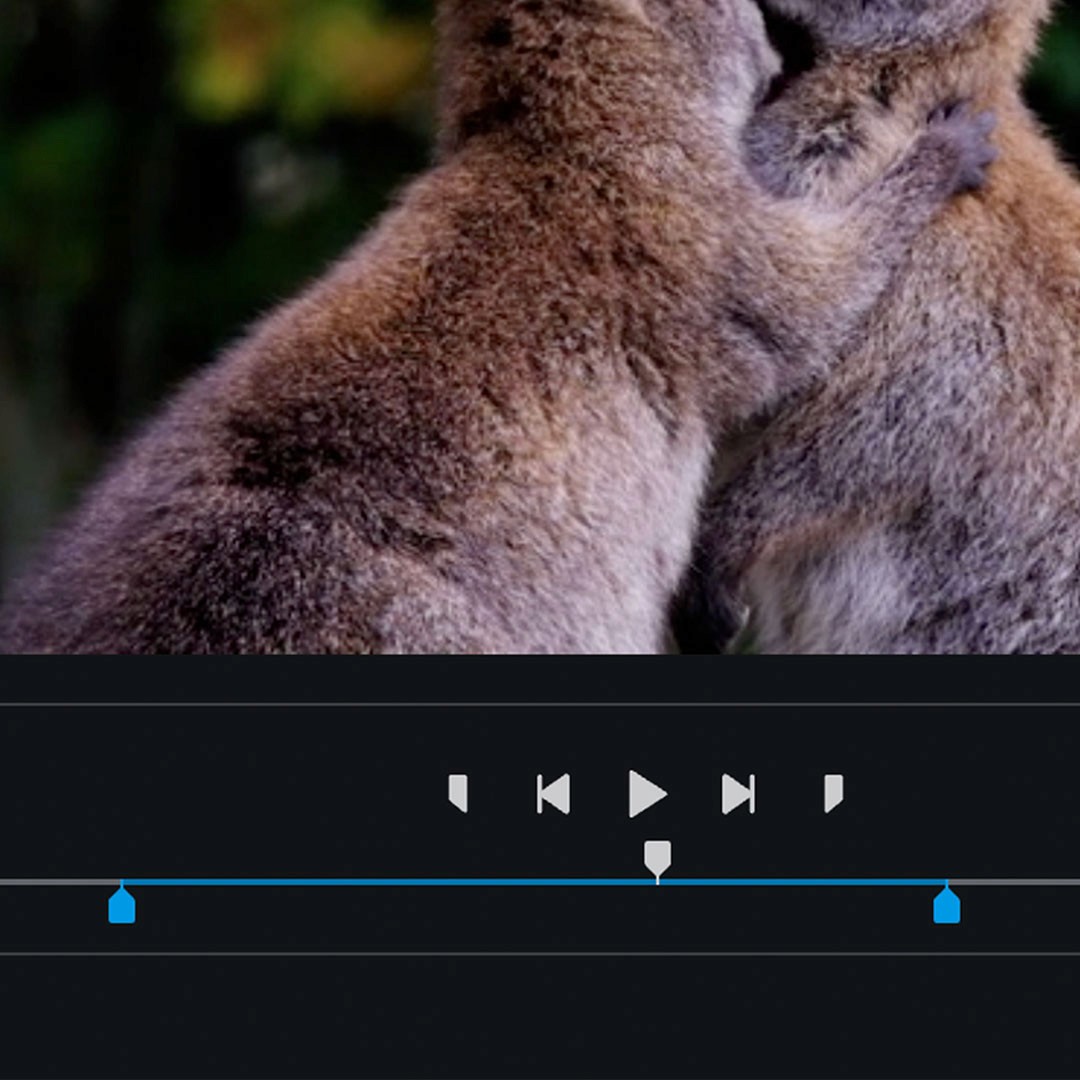
Preview and select
Double click a stock video to preview it before adding it to your timeline. Use In and Out points to make a selection and drag just that section to your timeline.
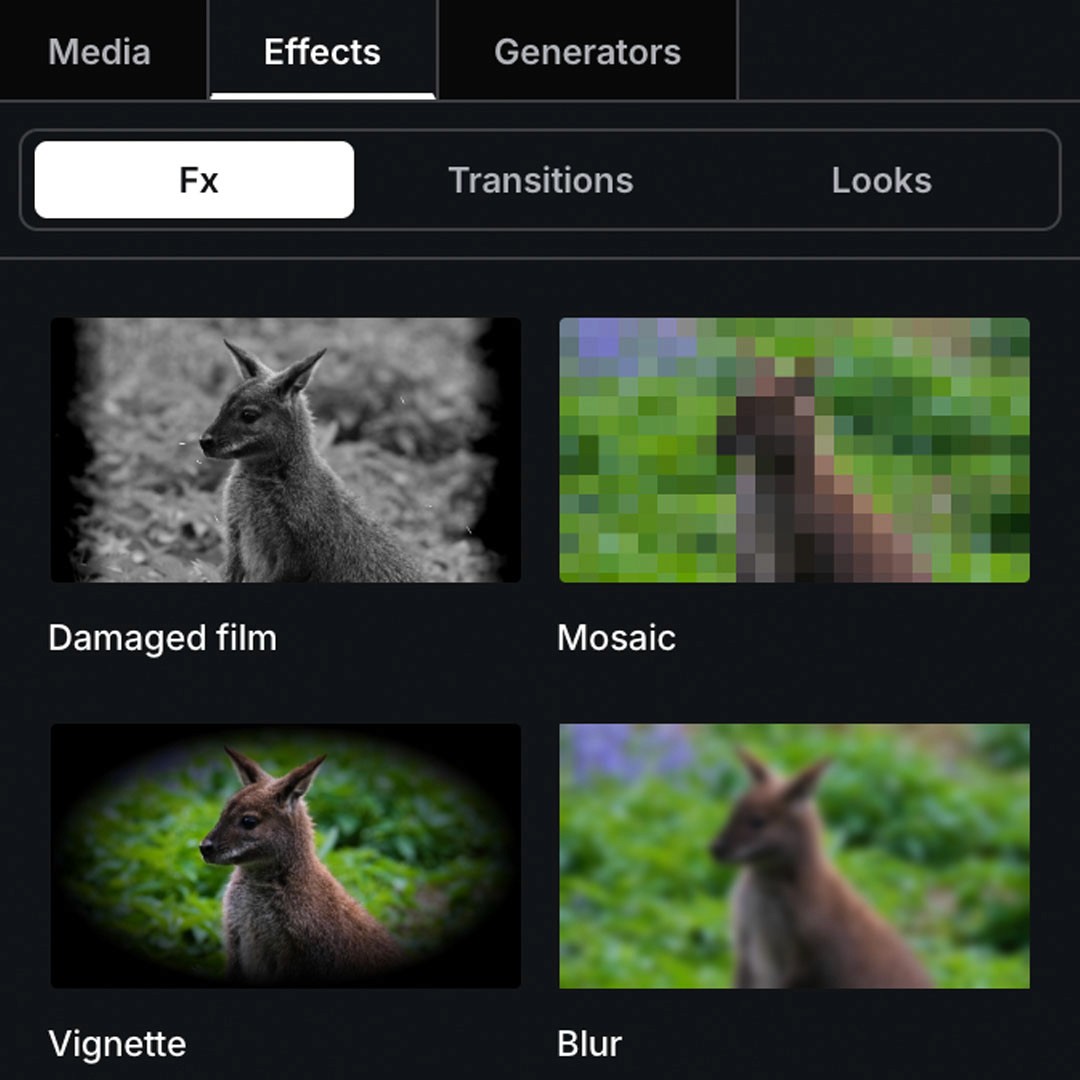
Edit stock footage
After you've dragged a stock video clip to your timeline, you can edit it like any other media. Sequence it, cut it, trim it, transform it. Add a Look and make it your own.
Preview and select
Double click a stock video to preview it before adding it to your timeline. Use In and Out points to make a selection and drag just that section to your timeline.
Edit stock footage
After you've dragged a stock video clip to your timeline, you can edit it like any other media. Sequence it, cut it, trim it, transform it. Add a Look and make it your own.
Preview and select
Double click a stock video to preview it before adding it to your timeline. Use In and Out points to make a selection and drag just that section to your timeline.
Edit stock footage
After you've dragged a stock video clip to your timeline, you can edit it like any other media. Sequence it, cut it, trim it, transform it. Add a Look and make it your own.
Preview and select
Double click a stock video to preview it before adding it to your timeline. Use In and Out points to make a selection and drag just that section to your timeline.
Edit stock footage
After you've dragged a stock video clip to your timeline, you can edit it like any other media. Sequence it, cut it, trim it, transform it. Add a Look and make it your own.
Preview and select
Double click a stock video to preview it before adding it to your timeline. Use In and Out points to make a selection and drag just that section to your timeline.
Edit stock footage
After you've dragged a stock video clip to your timeline, you can edit it like any other media. Sequence it, cut it, trim it, transform it. Add a Look and make it your own.
Preview and select
Double click a stock video to preview it before adding it to your timeline. Use In and Out points to make a selection and drag just that section to your timeline.
Edit stock footage
After you've dragged a stock video clip to your timeline, you can edit it like any other media. Sequence it, cut it, trim it, transform it. Add a Look and make it your own.
Preview and select
Double click a stock video to preview it before adding it to your timeline. Use In and Out points to make a selection and drag just that section to your timeline.
Edit stock footage
After you've dragged a stock video clip to your timeline, you can edit it like any other media. Sequence it, cut it, trim it, transform it. Add a Look and make it your own.
Preview and select
Double click a stock video to preview it before adding it to your timeline. Use In and Out points to make a selection and drag just that section to your timeline.
Edit stock footage
After you've dragged a stock video clip to your timeline, you can edit it like any other media. Sequence it, cut it, trim it, transform it. Add a Look and make it your own.
Preview and select
Double click a stock video to preview it before adding it to your timeline. Use In and Out points to make a selection and drag just that section to your timeline.
Edit stock footage
After you've dragged a stock video clip to your timeline, you can edit it like any other media. Sequence it, cut it, trim it, transform it. Add a Look and make it your own.
Preview and select
Double click a stock video to preview it before adding it to your timeline. Use In and Out points to make a selection and drag just that section to your timeline.
Edit stock footage
After you've dragged a stock video clip to your timeline, you can edit it like any other media. Sequence it, cut it, trim it, transform it. Add a Look and make it your own.
Preview and select
Double click a stock video to preview it before adding it to your timeline. Use In and Out points to make a selection and drag just that section to your timeline.
Edit stock footage
After you've dragged a stock video clip to your timeline, you can edit it like any other media. Sequence it, cut it, trim it, transform it. Add a Look and make it your own.
Preview and select
Double click a stock video to preview it before adding it to your timeline. Use In and Out points to make a selection and drag just that section to your timeline.
Edit stock footage
After you've dragged a stock video clip to your timeline, you can edit it like any other media. Sequence it, cut it, trim it, transform it. Add a Look and make it your own.
FAQ
Is this stock video library free?
Yes, the entire stock video library is freely available to all elevate.io users. You don't need to input any payment details to start using stock.
Can I publish videos with elevate.io stock footage to my website or social media?
You can publish videos with our stock footage freely with some exceptions. Please check our T&Cs for full details on stock usage.
Do I need to download or install anything?
No, elevate.io is a fully online video editor that runs in your browser. You can edit videos and use stock footage without needing to download any software.