How to add subtitles to your videos
01
Create a new project
Click the blue 'Create project' button in the top right of your workspace.
02
Upload your footage
03
Enable subtitles
04
Pick a design
01
Create a new project
Click the blue 'Create project' button in the top right of your workspace.
01
Create a new project
Click the blue 'Create project' button in the top right of your workspace.
Editing tips
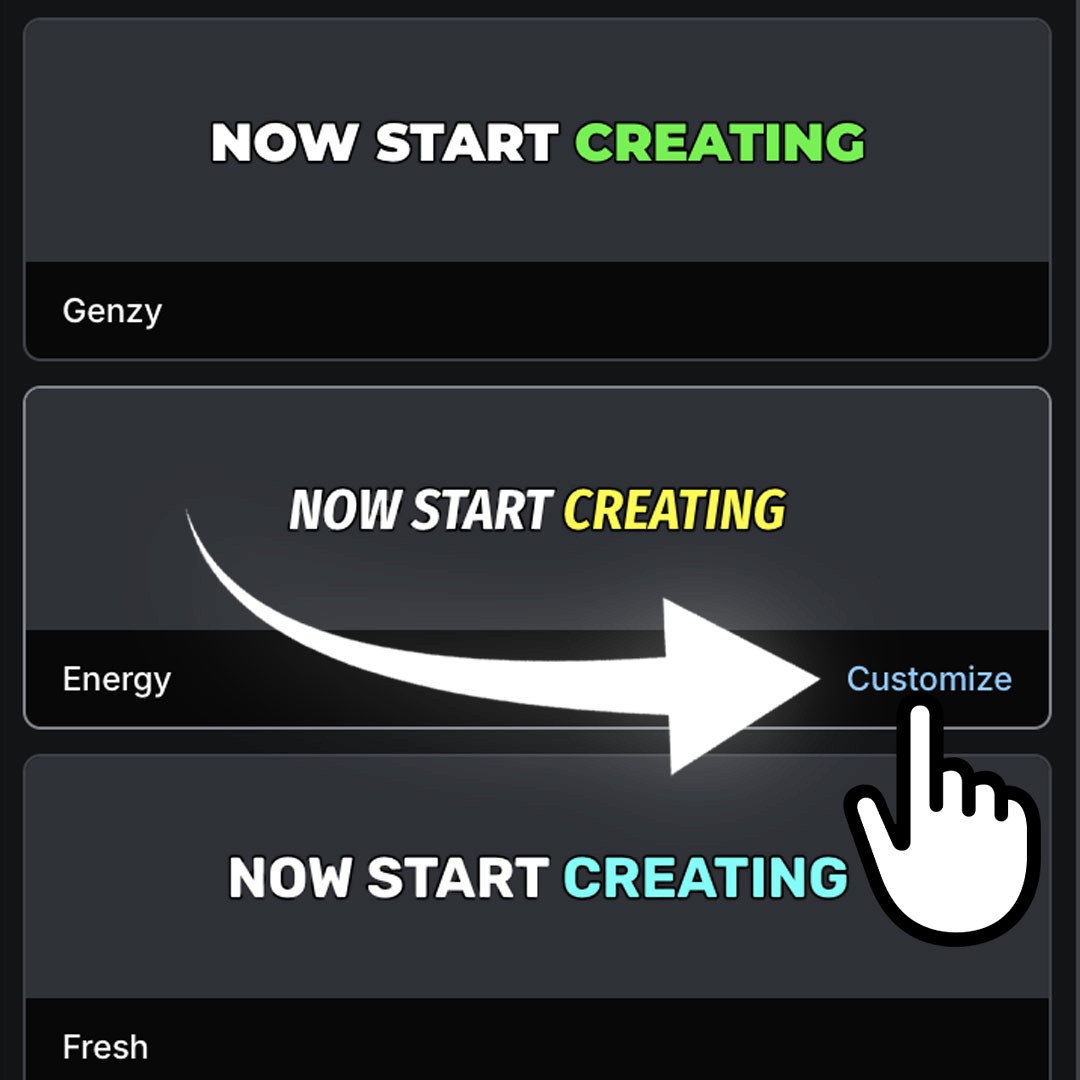
Design your captions
Click Customize on a subtitle style to design something unique and make your captions your own. Change the font, color, highlight, background, word count, and much more.
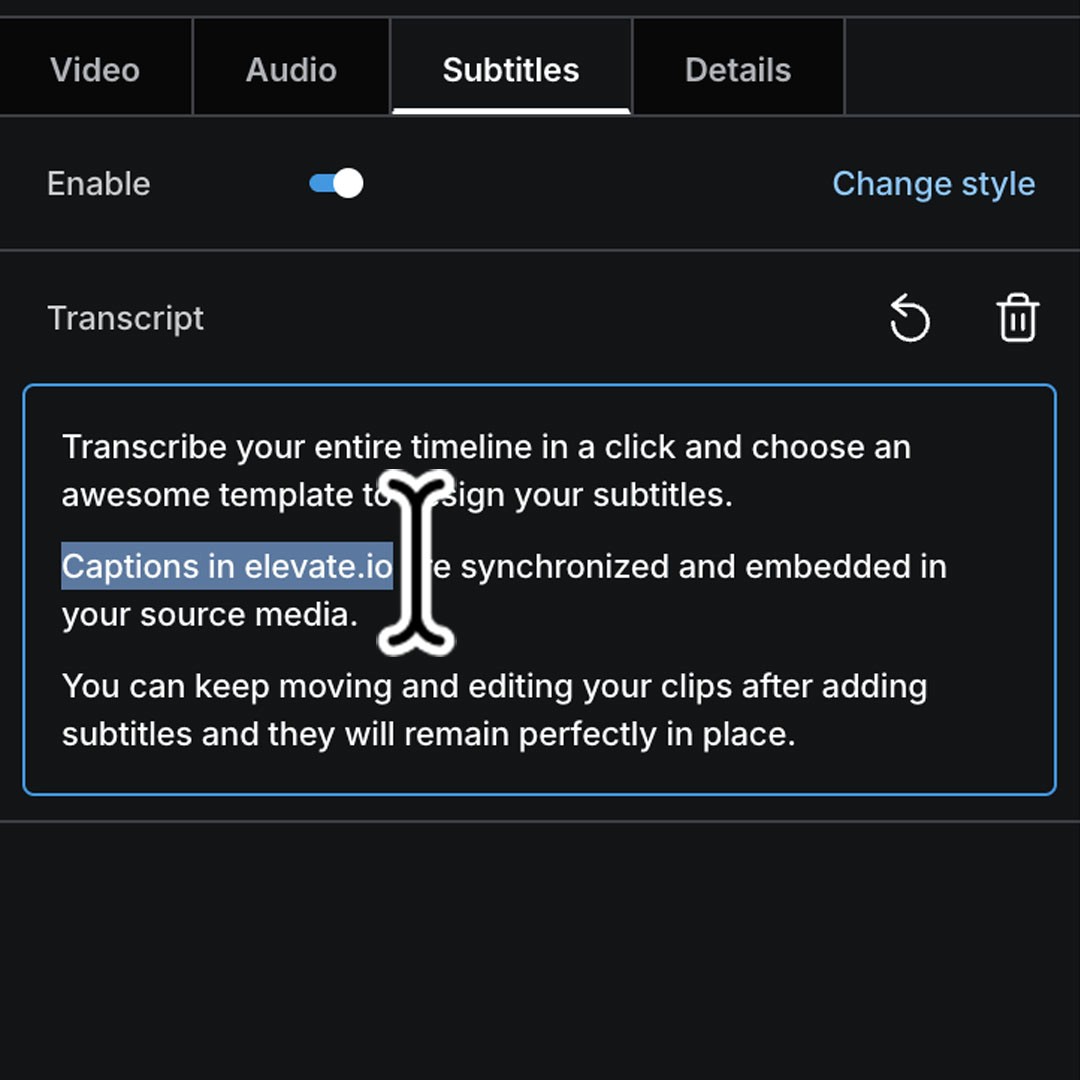
Edit transcript
To change or correct your subtitles simply select a clip, go to the Subtitle tab, and edit the transcript. Your subtitles will adjust automatically and remain perfectly in sync.
Design your captions
Click Customize on a subtitle style to design something unique and make your captions your own. Change the font, color, highlight, background, word count, and much more.
Edit transcript
To change or correct your subtitles simply select a clip, go to the Subtitle tab, and edit the transcript. Your subtitles will adjust automatically and remain perfectly in sync.
Design your captions
Click Customize on a subtitle style to design something unique and make your captions your own. Change the font, color, highlight, background, word count, and much more.
Edit transcript
To change or correct your subtitles simply select a clip, go to the Subtitle tab, and edit the transcript. Your subtitles will adjust automatically and remain perfectly in sync.
Design your captions
Click Customize on a subtitle style to design something unique and make your captions your own. Change the font, color, highlight, background, word count, and much more.
Edit transcript
To change or correct your subtitles simply select a clip, go to the Subtitle tab, and edit the transcript. Your subtitles will adjust automatically and remain perfectly in sync.
Design your captions
Click Customize on a subtitle style to design something unique and make your captions your own. Change the font, color, highlight, background, word count, and much more.
Edit transcript
To change or correct your subtitles simply select a clip, go to the Subtitle tab, and edit the transcript. Your subtitles will adjust automatically and remain perfectly in sync.
Design your captions
Click Customize on a subtitle style to design something unique and make your captions your own. Change the font, color, highlight, background, word count, and much more.
Edit transcript
To change or correct your subtitles simply select a clip, go to the Subtitle tab, and edit the transcript. Your subtitles will adjust automatically and remain perfectly in sync.
Design your captions
Click Customize on a subtitle style to design something unique and make your captions your own. Change the font, color, highlight, background, word count, and much more.
Edit transcript
To change or correct your subtitles simply select a clip, go to the Subtitle tab, and edit the transcript. Your subtitles will adjust automatically and remain perfectly in sync.
Design your captions
Click Customize on a subtitle style to design something unique and make your captions your own. Change the font, color, highlight, background, word count, and much more.
Edit transcript
To change or correct your subtitles simply select a clip, go to the Subtitle tab, and edit the transcript. Your subtitles will adjust automatically and remain perfectly in sync.
Design your captions
Click Customize on a subtitle style to design something unique and make your captions your own. Change the font, color, highlight, background, word count, and much more.
Edit transcript
To change or correct your subtitles simply select a clip, go to the Subtitle tab, and edit the transcript. Your subtitles will adjust automatically and remain perfectly in sync.
Design your captions
Click Customize on a subtitle style to design something unique and make your captions your own. Change the font, color, highlight, background, word count, and much more.
Edit transcript
To change or correct your subtitles simply select a clip, go to the Subtitle tab, and edit the transcript. Your subtitles will adjust automatically and remain perfectly in sync.
Design your captions
Click Customize on a subtitle style to design something unique and make your captions your own. Change the font, color, highlight, background, word count, and much more.
Edit transcript
To change or correct your subtitles simply select a clip, go to the Subtitle tab, and edit the transcript. Your subtitles will adjust automatically and remain perfectly in sync.
Design your captions
Click Customize on a subtitle style to design something unique and make your captions your own. Change the font, color, highlight, background, word count, and much more.
Edit transcript
To change or correct your subtitles simply select a clip, go to the Subtitle tab, and edit the transcript. Your subtitles will adjust automatically and remain perfectly in sync.
FAQ
Can I add subtitles to my video for free?
elevate.io has a free Starter plan that includes 100 free introductory tokens. You can use these to generate captions for free.
How many hours of footage can I transcribe for free?
With your 100 free introductory tokens you can transcribe approximately 1.5 hours of footage.
Do I need to download or install anything?
elevate.io is a fully online video editor that runs in your browser. You can edit videos and add subtitles without needing to download any software.