How to add transitions to your videos
01
Create a new project
Click the blue 'Create project' button in the top right of your workspace.
02
Add clips to the timeline
03
Add transitions
04
Hit Export to get your video
01
Create a new project
Click the blue 'Create project' button in the top right of your workspace.
01
Create a new project
Click the blue 'Create project' button in the top right of your workspace.
Editing tips
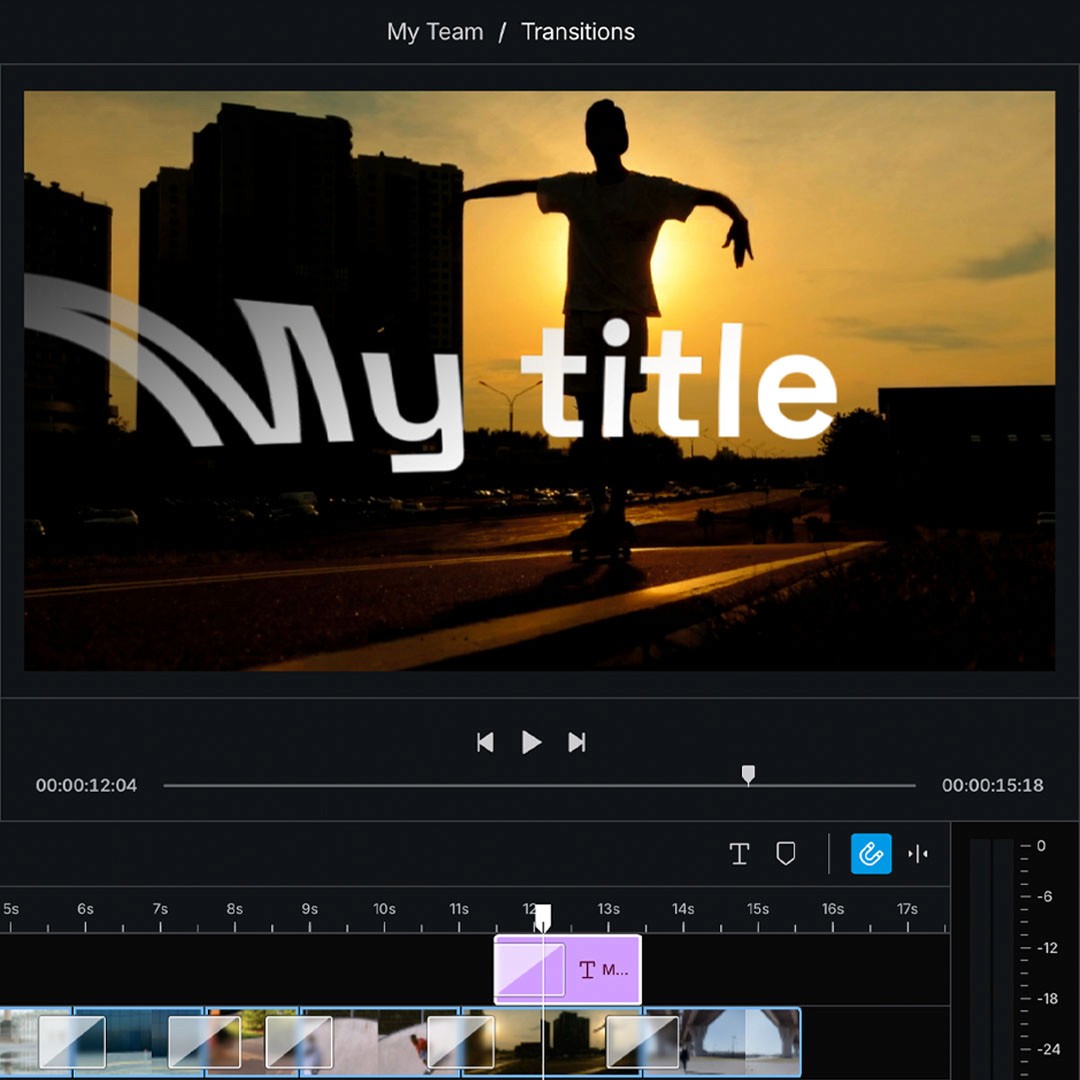
Animate text
You can add any transition to the start or end of a Basic text generator to animate your titles coming in or leaving the frame.
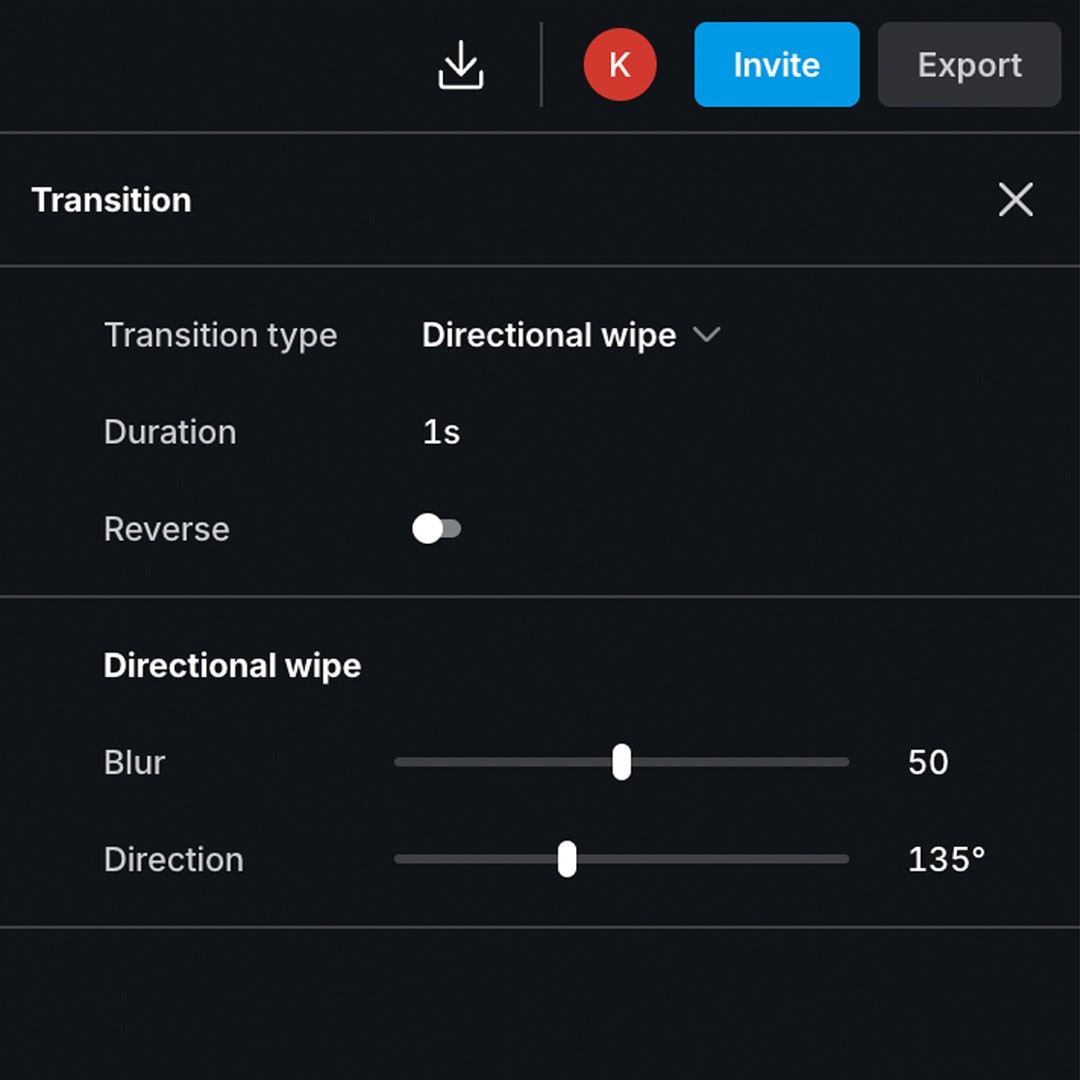
Adjust transitions
You can tweak the way a transition looks by selecting a transition on your timeline and going into the Inspector panel on the right. Try adjusting attributes like direction or amplitude.
Animate text
You can add any transition to the start or end of a Basic text generator to animate your titles coming in or leaving the frame.
Adjust transitions
You can tweak the way a transition looks by selecting a transition on your timeline and going into the Inspector panel on the right. Try adjusting attributes like direction or amplitude.
Animate text
You can add any transition to the start or end of a Basic text generator to animate your titles coming in or leaving the frame.
Adjust transitions
You can tweak the way a transition looks by selecting a transition on your timeline and going into the Inspector panel on the right. Try adjusting attributes like direction or amplitude.
Animate text
You can add any transition to the start or end of a Basic text generator to animate your titles coming in or leaving the frame.
Adjust transitions
You can tweak the way a transition looks by selecting a transition on your timeline and going into the Inspector panel on the right. Try adjusting attributes like direction or amplitude.
Animate text
You can add any transition to the start or end of a Basic text generator to animate your titles coming in or leaving the frame.
Adjust transitions
You can tweak the way a transition looks by selecting a transition on your timeline and going into the Inspector panel on the right. Try adjusting attributes like direction or amplitude.
Animate text
You can add any transition to the start or end of a Basic text generator to animate your titles coming in or leaving the frame.
Adjust transitions
You can tweak the way a transition looks by selecting a transition on your timeline and going into the Inspector panel on the right. Try adjusting attributes like direction or amplitude.
Animate text
You can add any transition to the start or end of a Basic text generator to animate your titles coming in or leaving the frame.
Adjust transitions
You can tweak the way a transition looks by selecting a transition on your timeline and going into the Inspector panel on the right. Try adjusting attributes like direction or amplitude.
Animate text
You can add any transition to the start or end of a Basic text generator to animate your titles coming in or leaving the frame.
Adjust transitions
You can tweak the way a transition looks by selecting a transition on your timeline and going into the Inspector panel on the right. Try adjusting attributes like direction or amplitude.
Animate text
You can add any transition to the start or end of a Basic text generator to animate your titles coming in or leaving the frame.
Adjust transitions
You can tweak the way a transition looks by selecting a transition on your timeline and going into the Inspector panel on the right. Try adjusting attributes like direction or amplitude.
Animate text
You can add any transition to the start or end of a Basic text generator to animate your titles coming in or leaving the frame.
Adjust transitions
You can tweak the way a transition looks by selecting a transition on your timeline and going into the Inspector panel on the right. Try adjusting attributes like direction or amplitude.
Animate text
You can add any transition to the start or end of a Basic text generator to animate your titles coming in or leaving the frame.
Adjust transitions
You can tweak the way a transition looks by selecting a transition on your timeline and going into the Inspector panel on the right. Try adjusting attributes like direction or amplitude.
Animate text
You can add any transition to the start or end of a Basic text generator to animate your titles coming in or leaving the frame.
Adjust transitions
You can tweak the way a transition looks by selecting a transition on your timeline and going into the Inspector panel on the right. Try adjusting attributes like direction or amplitude.
FAQ
Can I add transitions to my videos for free?
Yes. All our great transitions are available on the free Starter plan.
Do I need a powerful computer to use elevate.io?
Because elevate.io is a fully online video editor that runs in your browser, you don't need a powerful computer to edit great videos.
Do I need to download or install anything?
elevate.io is a fully online video editor that runs in your browser. You can edit videos and add transitions without needing to download any software.