
How to animate video clips, text, and graphics in a video
Learn how to create smooth in, out and looping animations that add instant polish to your edits.
Animations in elevate.io are one of the fastest ways to make a video look professional, and a lot more engaging to watch. Our brains are wired to notice movement before anything else, so a title that flies in, a logo that pulses in the corner, or a graphic that eases out will hold attention in a way that static elements simply don’t. Getting that effect used to mean hours in specialist software, but now you can achieve the same result in seconds.
Here’s how to do it.
Step 1: Open your project and select an element on the timeline
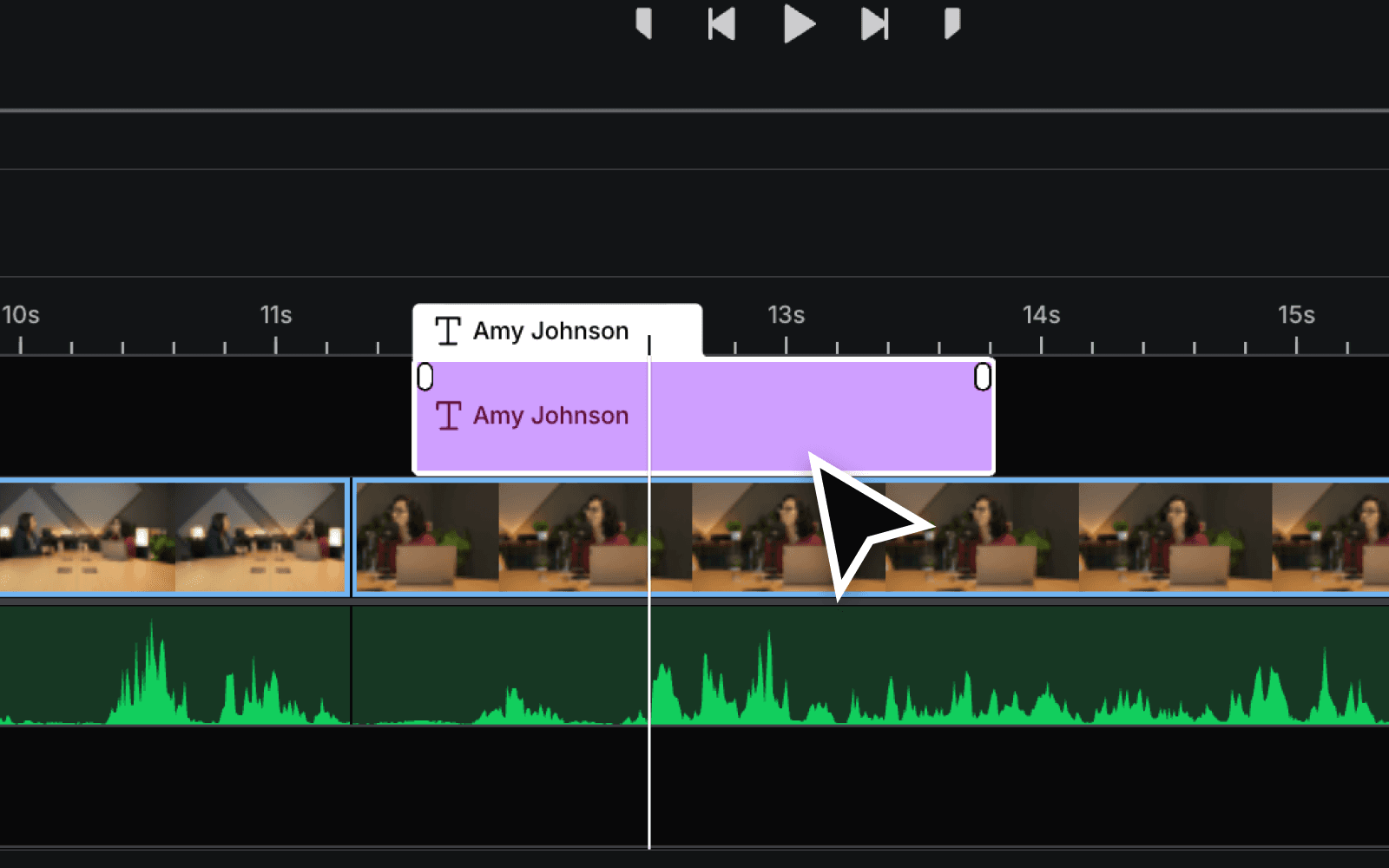
Open your video project and click on any element on the timeline. elevate.io's Animations work with text, graphics, shapes, logos, and video clips. Whatever you click on is what you’ll be animating.
Step 2: Find the Animate panel
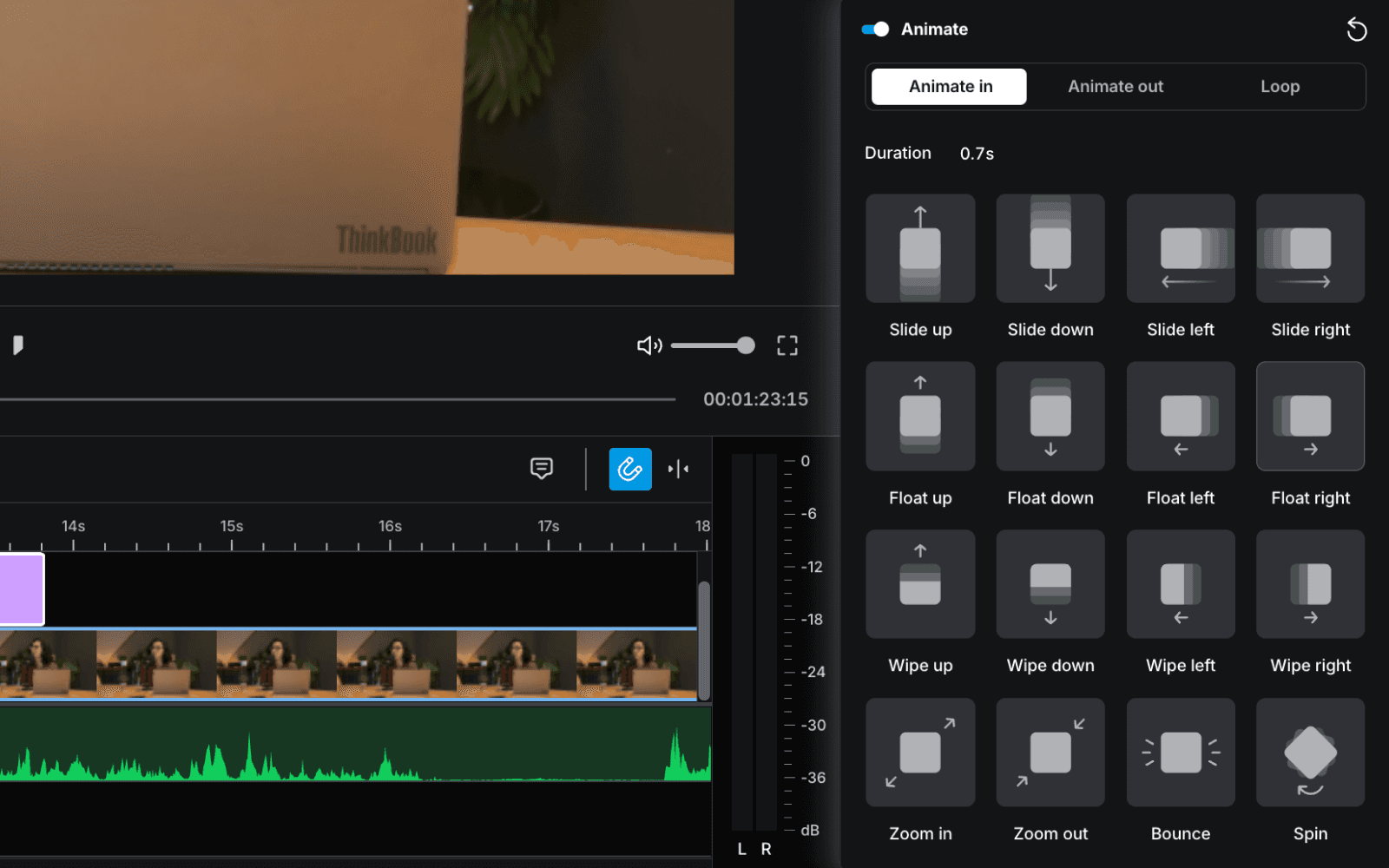
With your element selected, head to the Video tab on the right side of the editor. Under the Transforms panel, find Animate and click to expand it if it isn’t already open. Then make sure the toggle is switched on, otherwise the animations won’t show up in your video.
Step 3: Choose an animation preset
You’ll see three animations types:
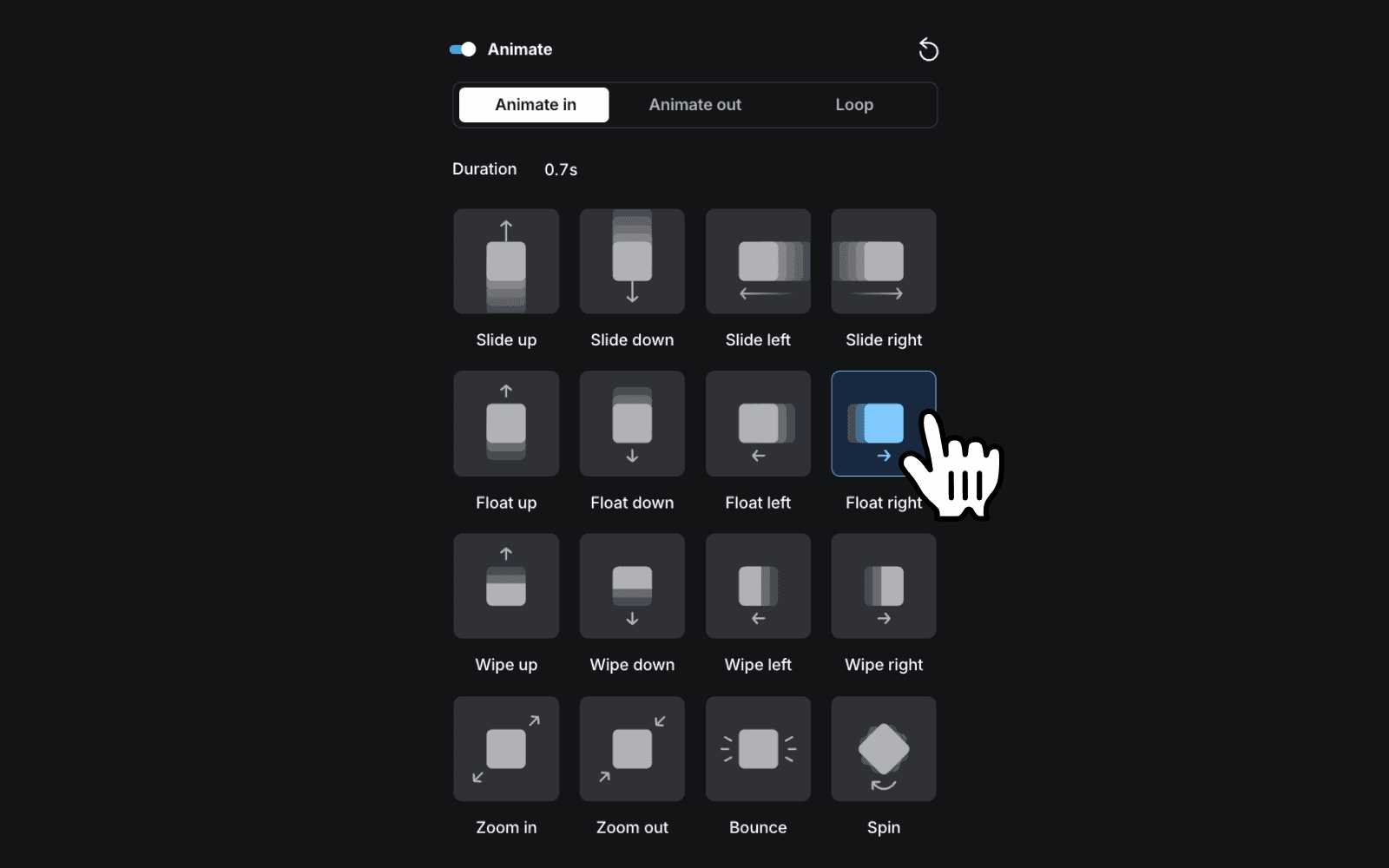
Animate In — this controls how the element enters the frame. Instead of a title just popping into view, it can slide in from the left, float down from the top, or wipe in from the right.
Animate Out — this controls how the element leaves the frame. Apply a bounce or wipe to the same title you animated in and the two together will already make the video look noticeably more dynamic and polished.
Loop — this keeps the animation running for as long as the element is on screen. A logo that gently spins or pulses in the corner of a brand video is a looping animation. Combine a Loop with an In and Out animation and you get a logo that cleanly arrives and exits rather than just abruptly popping in and cutting off.
Hover over any preset to preview it in the preview window. Once you find the one you want, click to apply it, then play back your video to see it in action!
Step 4: Control how fast the animation plays
Once you’ve picked an animation preset, adjust the duration to control the feel. Type in a number, or click and drag left to make it faster, right to make it slower.
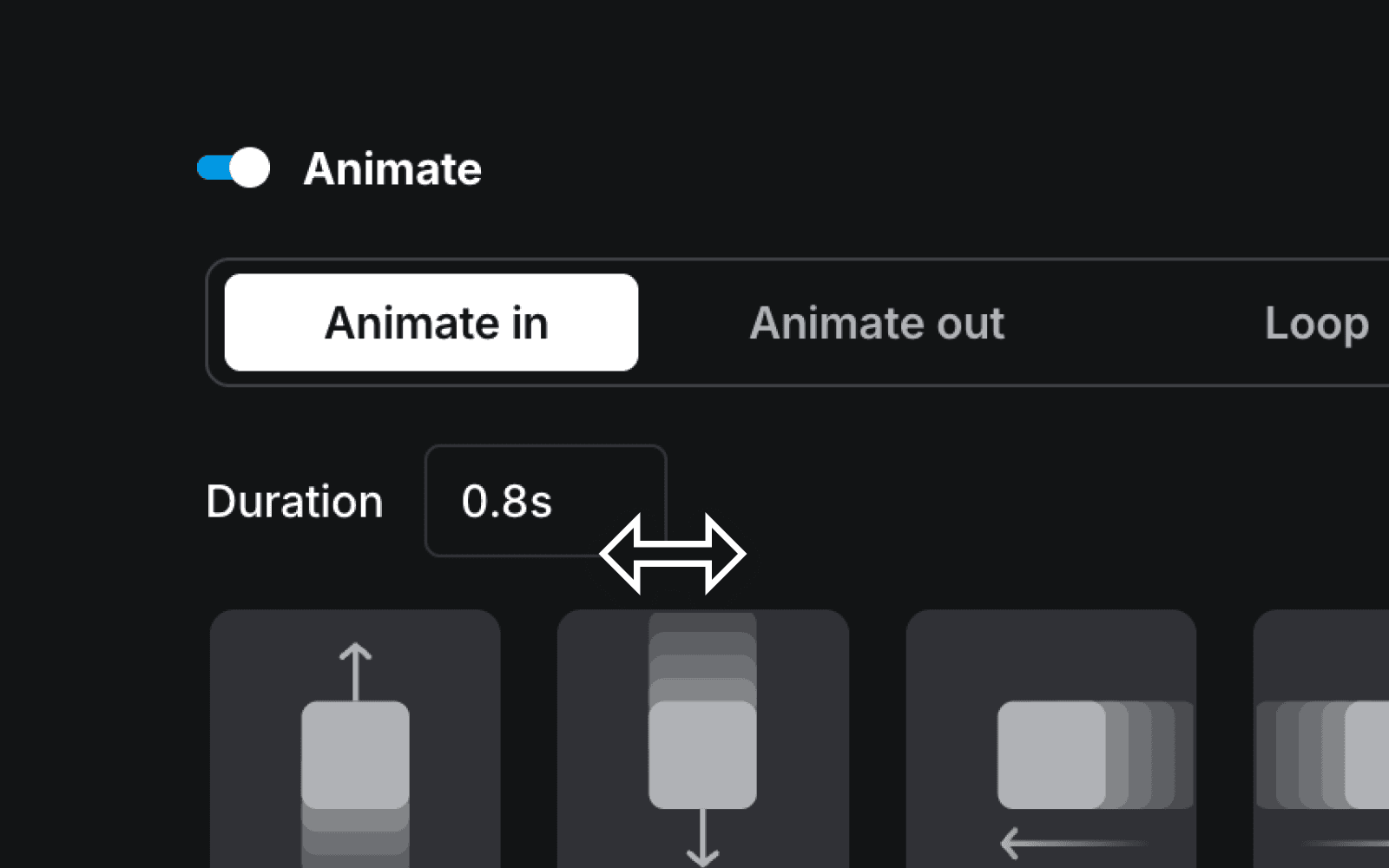
A short duration will make the animation feel sharp and snappy. A longer one will feel soft and gradual. The difference between 0.3 seconds and 0.8 seconds can shift the entire tone of a scene. So it’s worth trying a few speeds before you settle on one.
Start animating!
Whether you're putting together a social post, a presentation, or a home video, Animations in elevate.io makes it easy to get that professional finish without years of experience.
Updated on