How to add music to a video online for free
Learn how to add world-class, royalty-free music to a video using elevate.io's stock music library, powered by Epidemic Sound.
You can access 1000s of world-class music tracks from Epidemic Sound's premium catalog directly in elevate.io, the online video editor. So you can find and add copyright-free music to your video without leaving the editor.
Open the Stock Music library
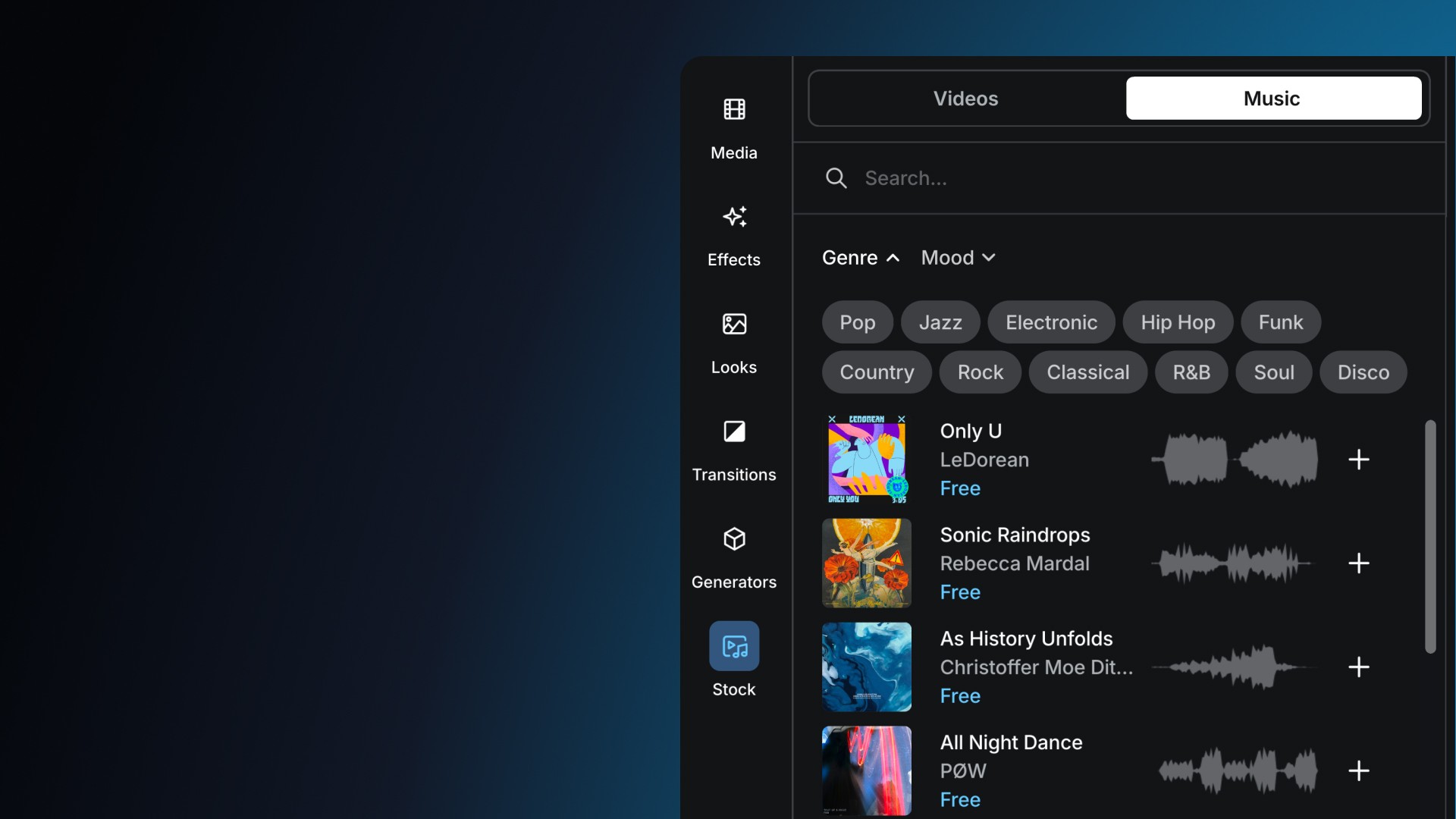
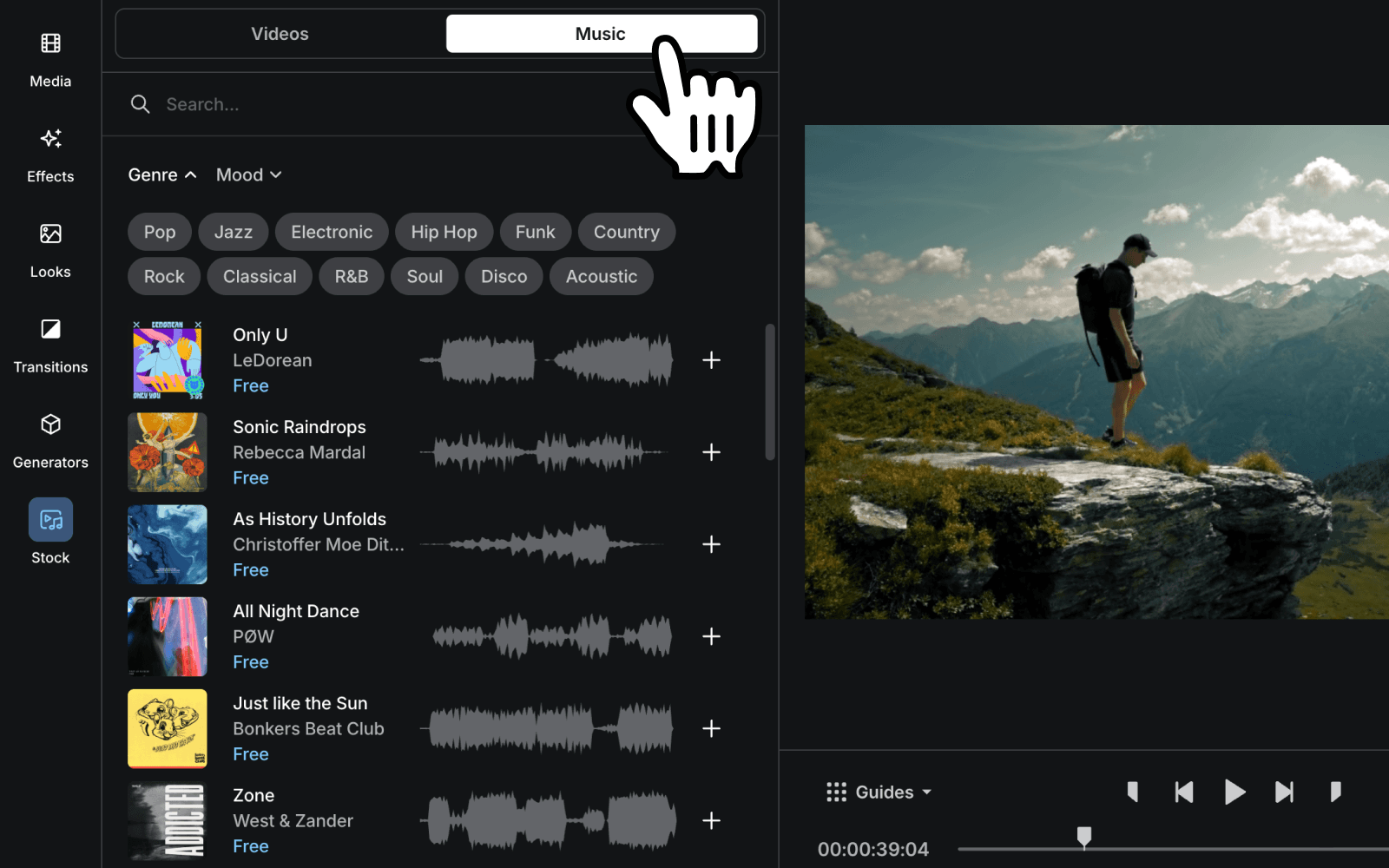
Once you're inside a project, head to the Stock tab in the navigation bar on the left. You'll see two tabs at the top: Video and Music. Click Music to open the library.
Free music tracks on every plan
Every elevate.io plan includes 25 top trending, royalty-free Epidemic Sound tracks for free to use for individual, non-monetized projects.
Monetization is when you earn revenue from your video, whether that's through YouTube's Partner Program, paid brand partnerships, sponsored content, or selling a product or service in the video.
Find the right track
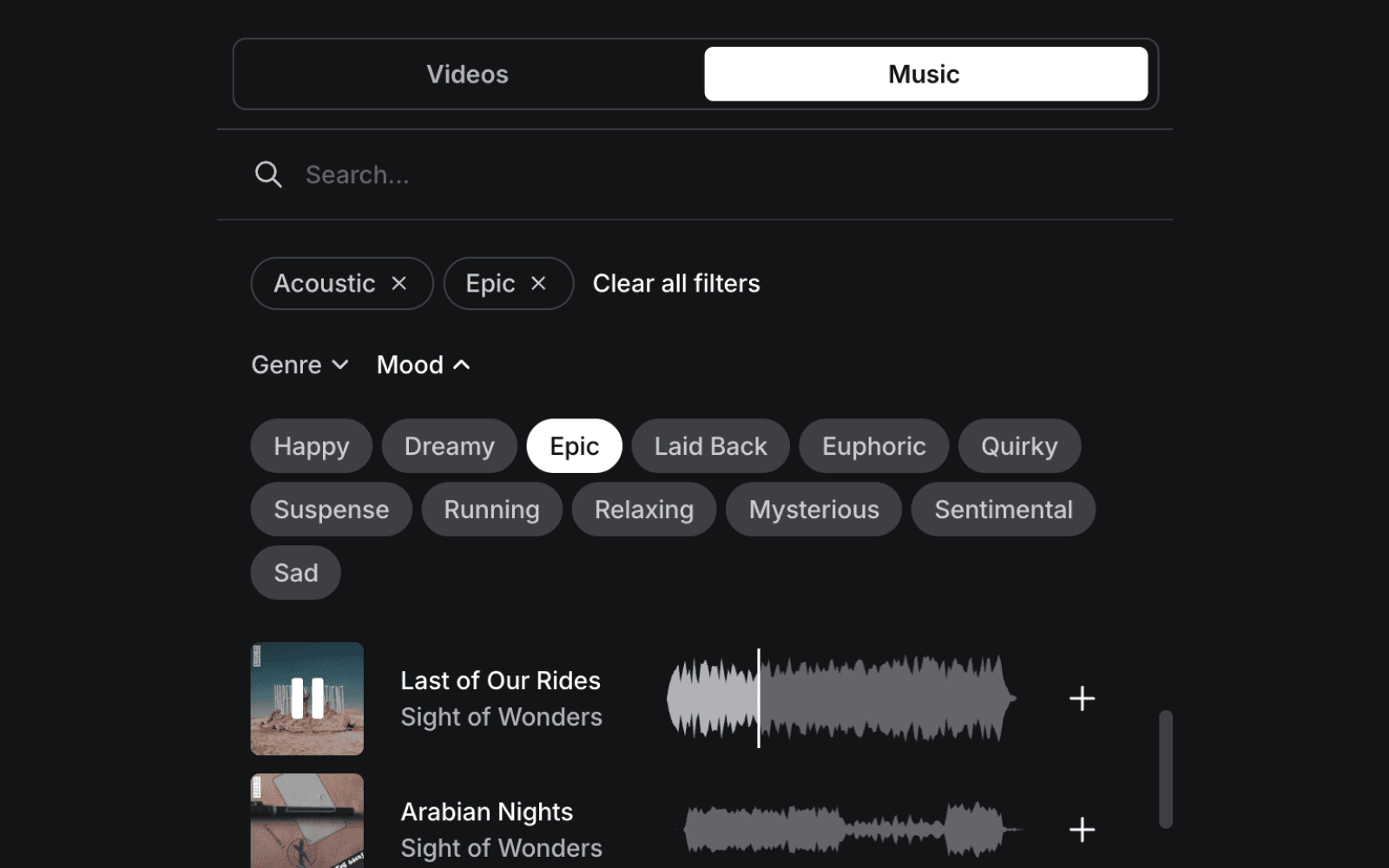
Browse the library by filtering by genre or mood, or use the search bar if you have something specific in mind. Once you find a track you like, you can preview it directly in the panel before adding it to your project.
Add music to your timeline
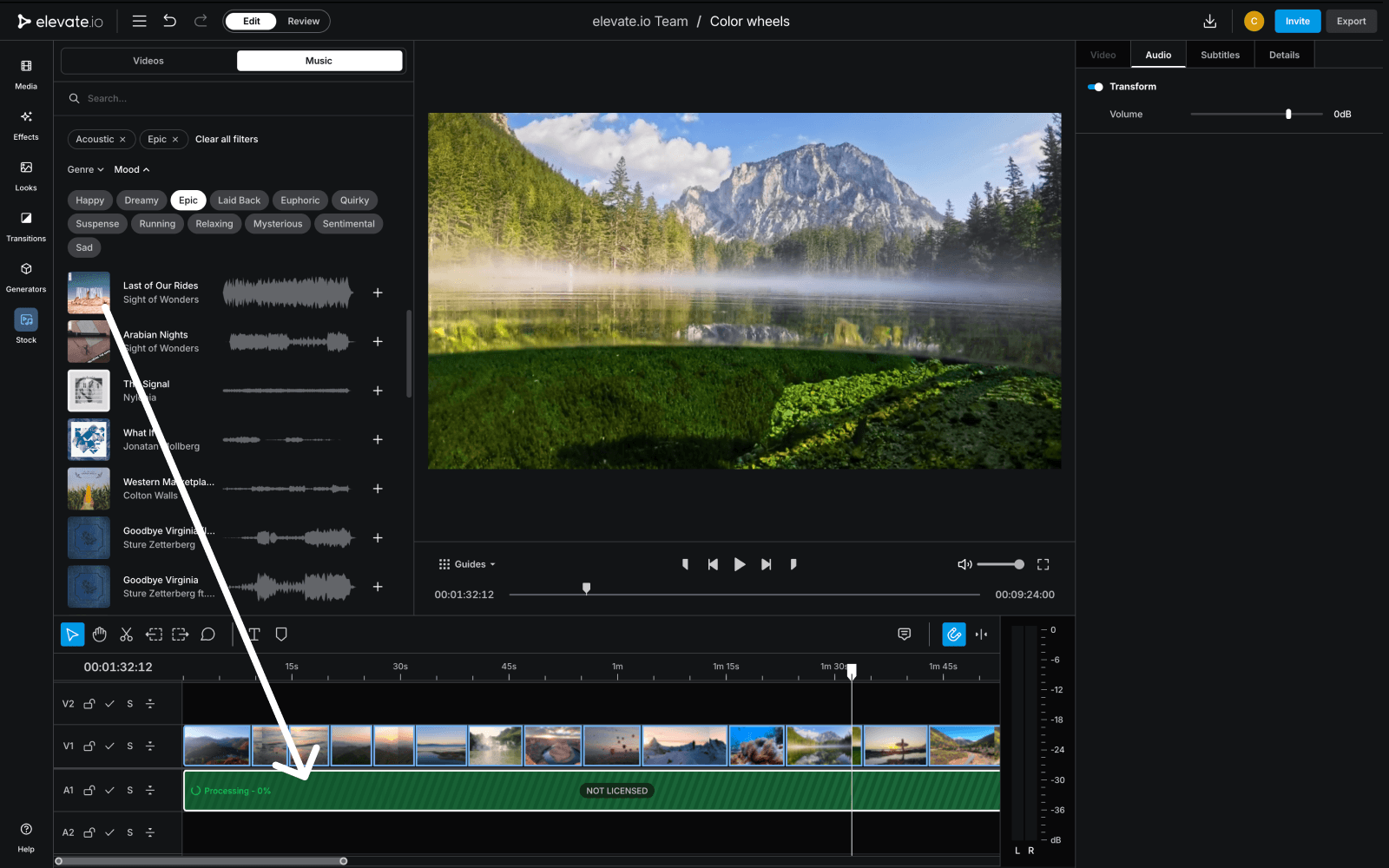
Select the image for the track, and drag and drop it onto your timeline. This is a great way to try different music quickly without interrupting your workflow or switching between platforms.
License your track
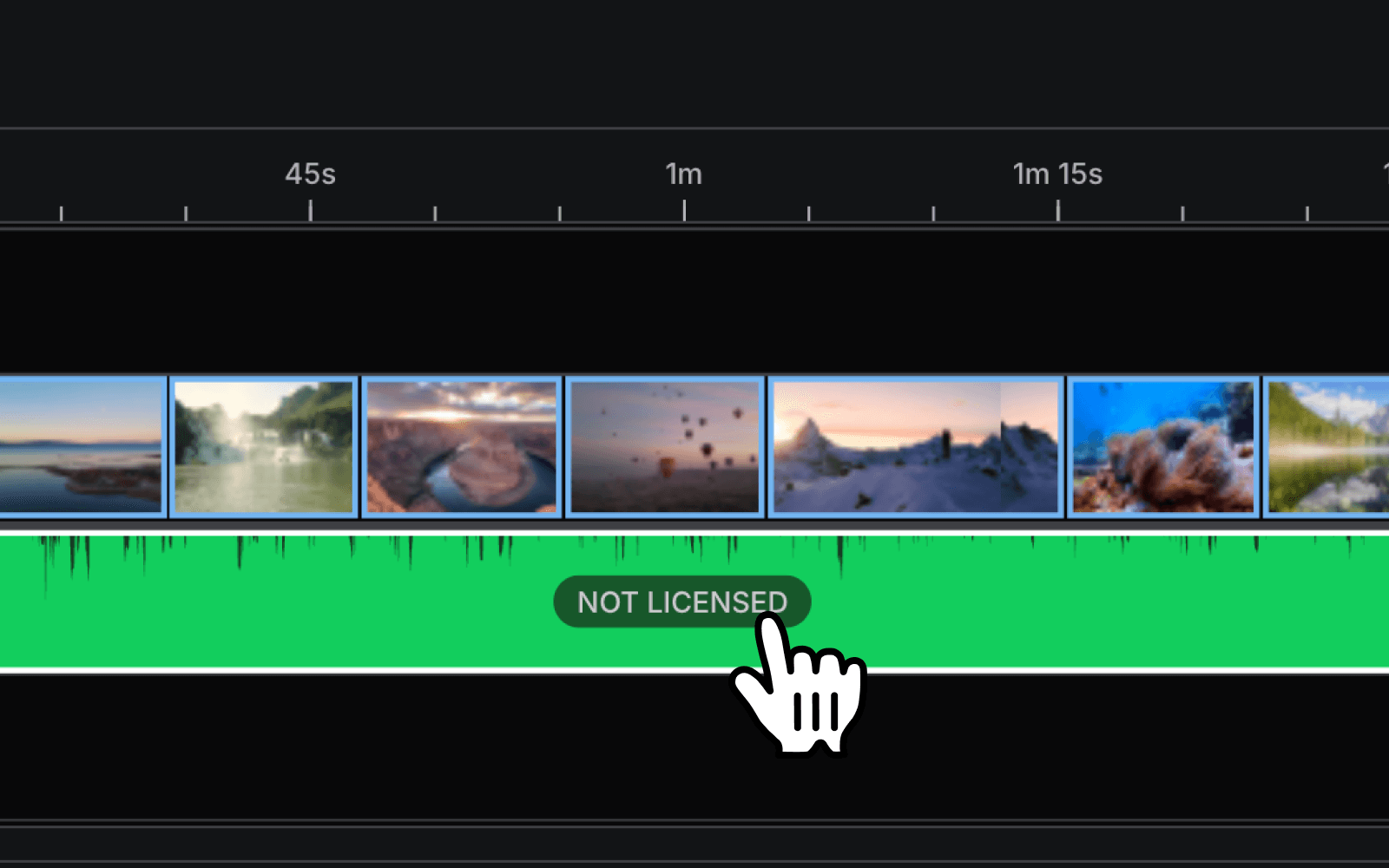
When you add a track, you'll see it marked as "Not licensed" in your timeline. If you're publishing publicly, monetizing on social media, or using the video for business, the track needs to be licensed first.
A licence gives you the legal right to use that piece of music in your video. Without one, your video can get flagged for copyright after publishing. Platforms like YouTube and Instagram automatically scan for unlicensed audio, and a flagged video can get muted or restricted.
To license a track:
Click the track in your timeline and hit the
NOT LICENSEDbutton.Answer a couple of quick questions to confirm the right licence type for your use case (if you're not sure which applies, click "Compare licences" to see what each one covers).
Then, hit
Licence.
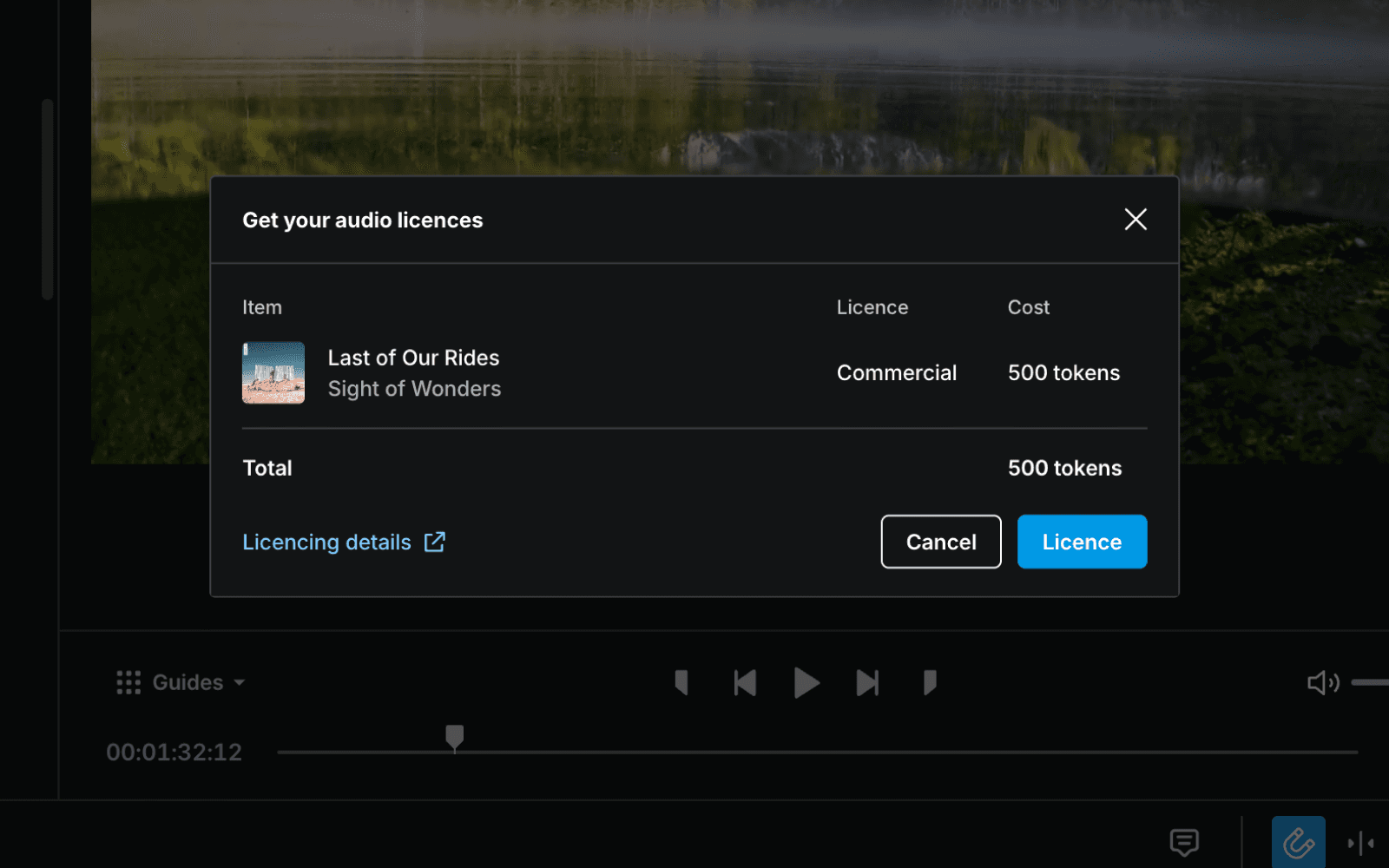
Track token cost:
Individual use: 100 tokens
Business use: 500 tokens
Every new elevate.io user receives 100 introductory tokens, and subscribers on any Premium plan also receive tokens monthly that can be used toward licensing tracks. For a full breakdown of how the tokens system works, refer to the dedicated Tokens learn video.
Safelist your video
After exporting, you will be asked to add the URL of where you're publishing the video. This registers your licence to that platform and is what keeps you covered if a copyright check runs against your content.
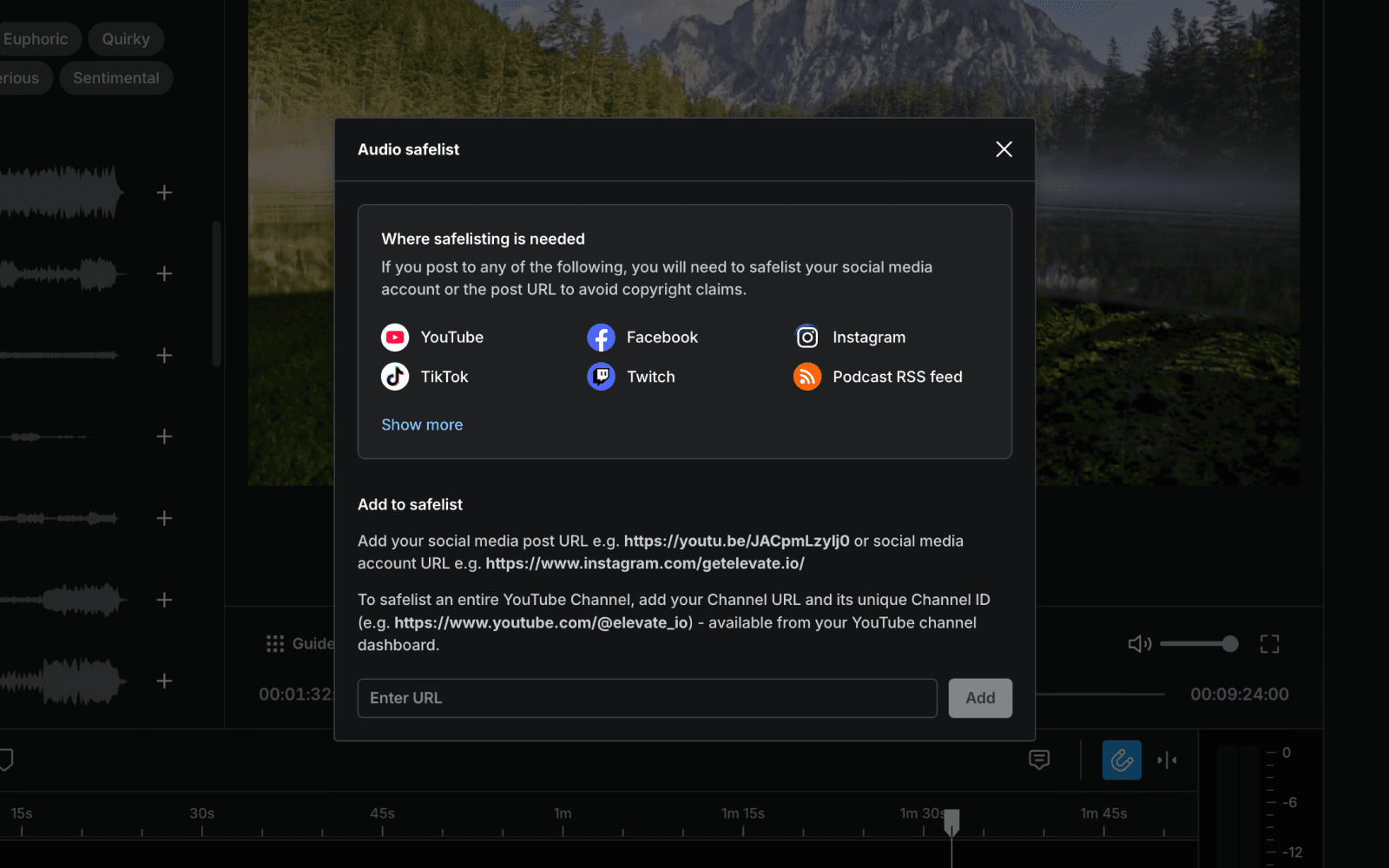
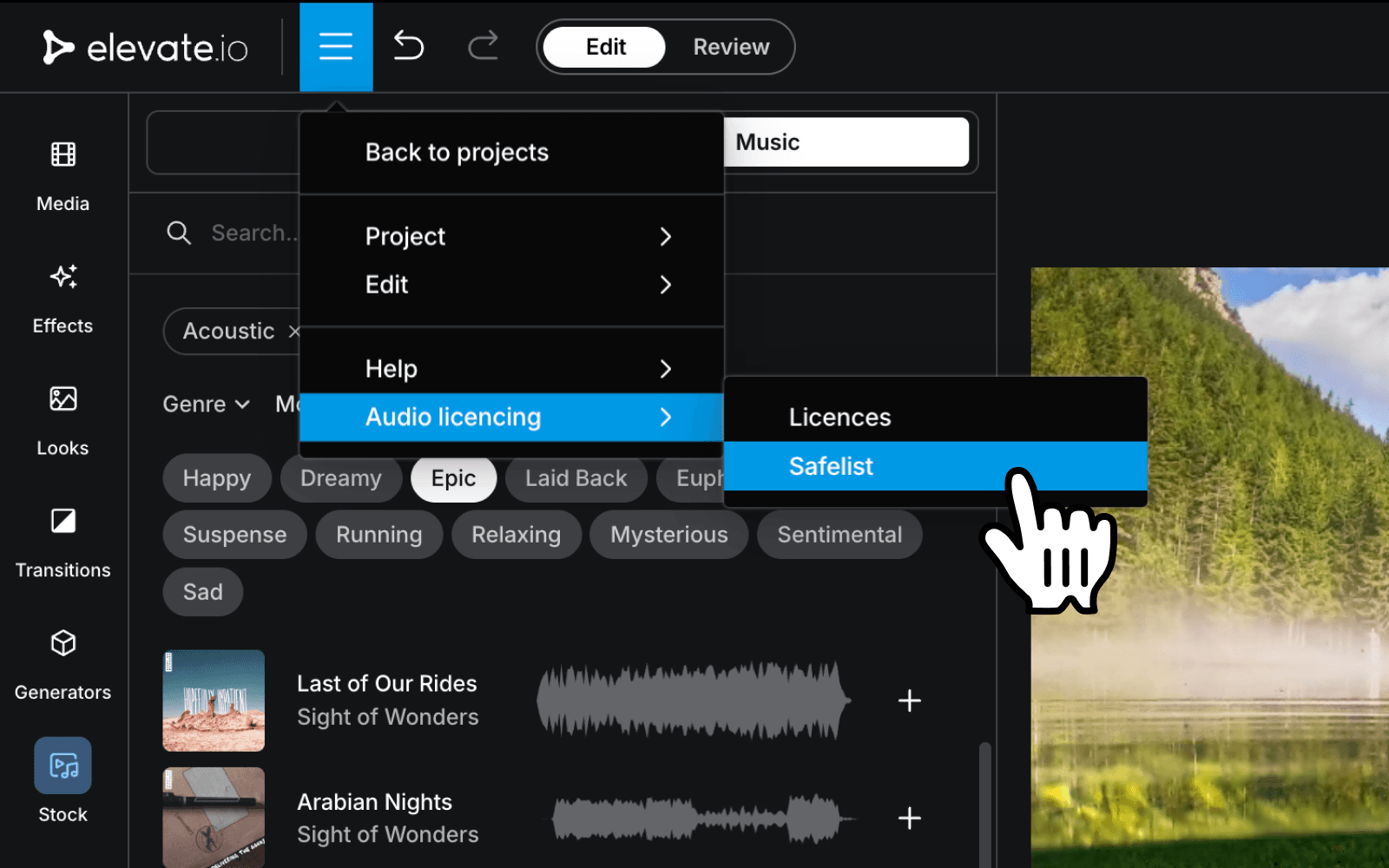
If you need to add or update a publishing link later, you can find your licensing and safelisting controls in the hamburger menu in the upper left corner of the editor.
Updated on