
You’re deep in an edit. Something goes wrong, or maybe nothing went wrong and you just preferred how it looked an hour ago. Undo has its limits. Recovery points don’t.
What are Recovery points?
As you make changes to your edit, elevate.io periodically saves snapshots of your project in the background. Every saved state is logged and timestamped, and can be restored in one click. No rebuilding from scratch, no recreating edits from memory.
How to use Recovery points:
Find Recovery points
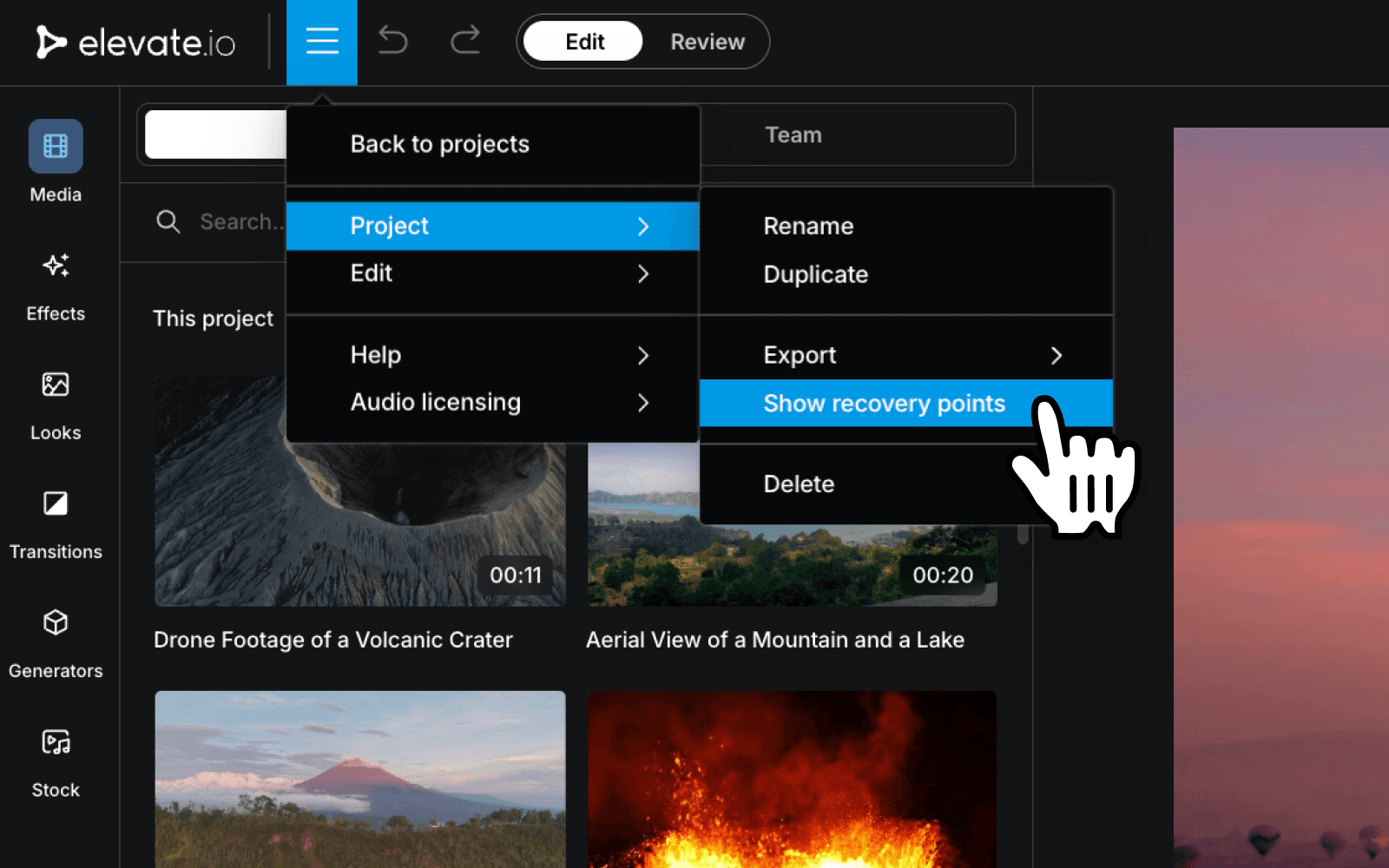
Go to the hamburger menu in the top-left corner of the editor, hover over 'Project', and select 'Show recovery points'. The panel opens on the right-hand side of the editor,
Browse Recovery history
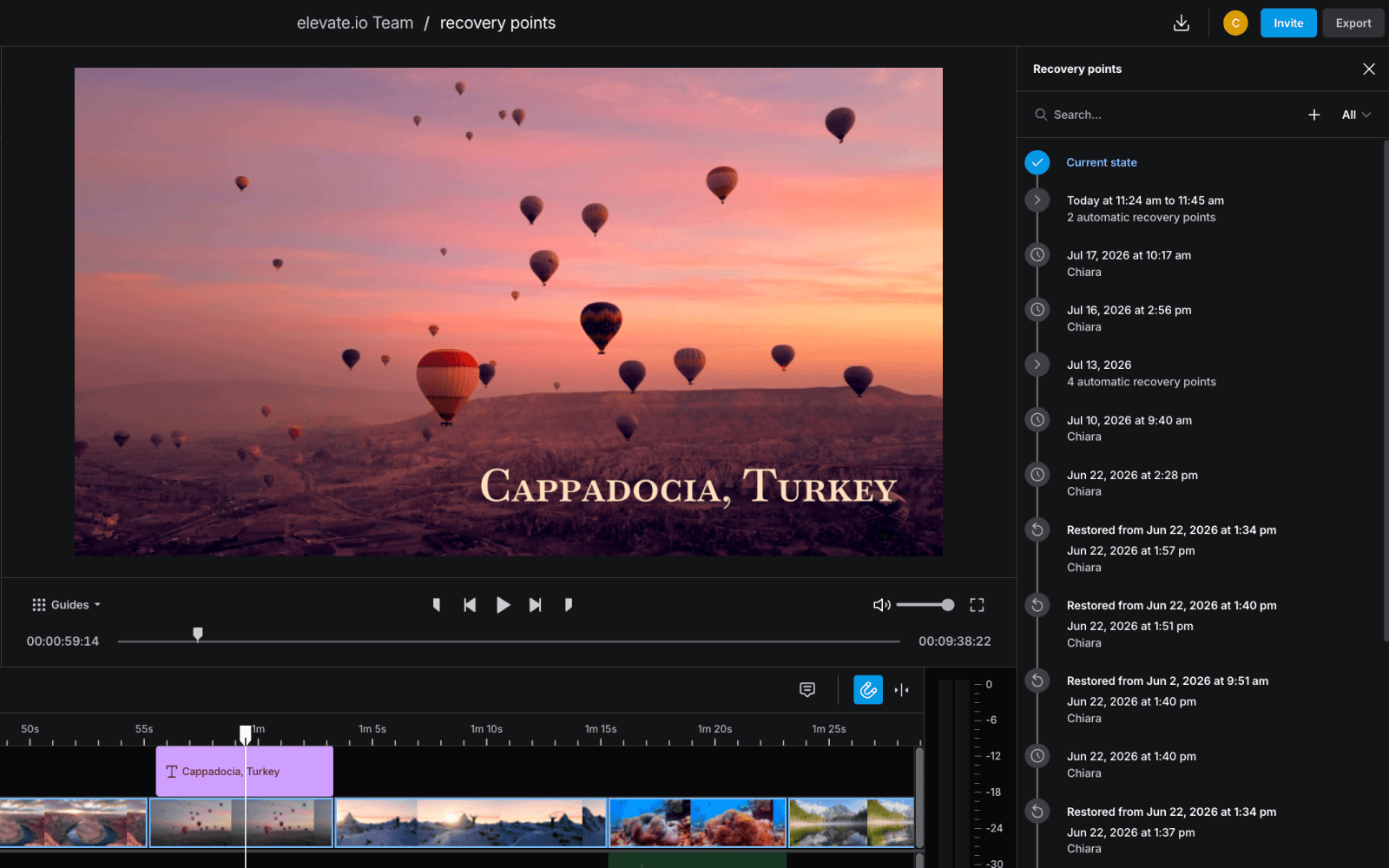
Every saved state sits in the panel, stamped with the exact date and time it was captured. How far back that history goes depends on your plan:
Starter: 24 hours
Creator: 7 days
Pro: 30 days
Business: Unlimited
Restoring a previous edit
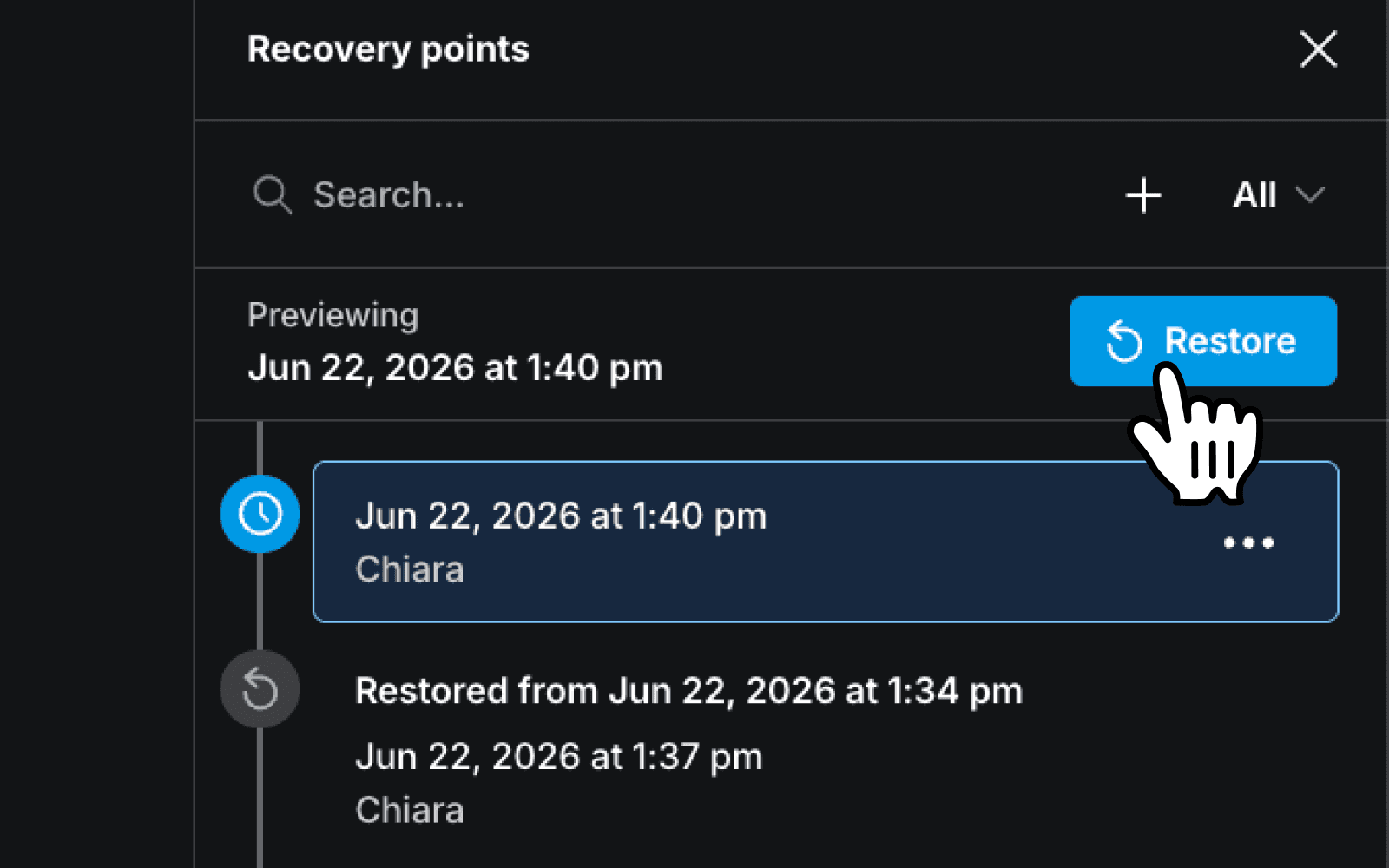
Click on any recovery point, and you’ll get a little preview of your project from that exact moment, so you can see what you’re going back to before you commit. When you find the right one, hit the blue Restore button at the top of the panel. Your project goes back to that state and the restore gets logged in the history,
Restored the wrong one? The state before you restored is captured too so you can easily flip back.
Adding a description
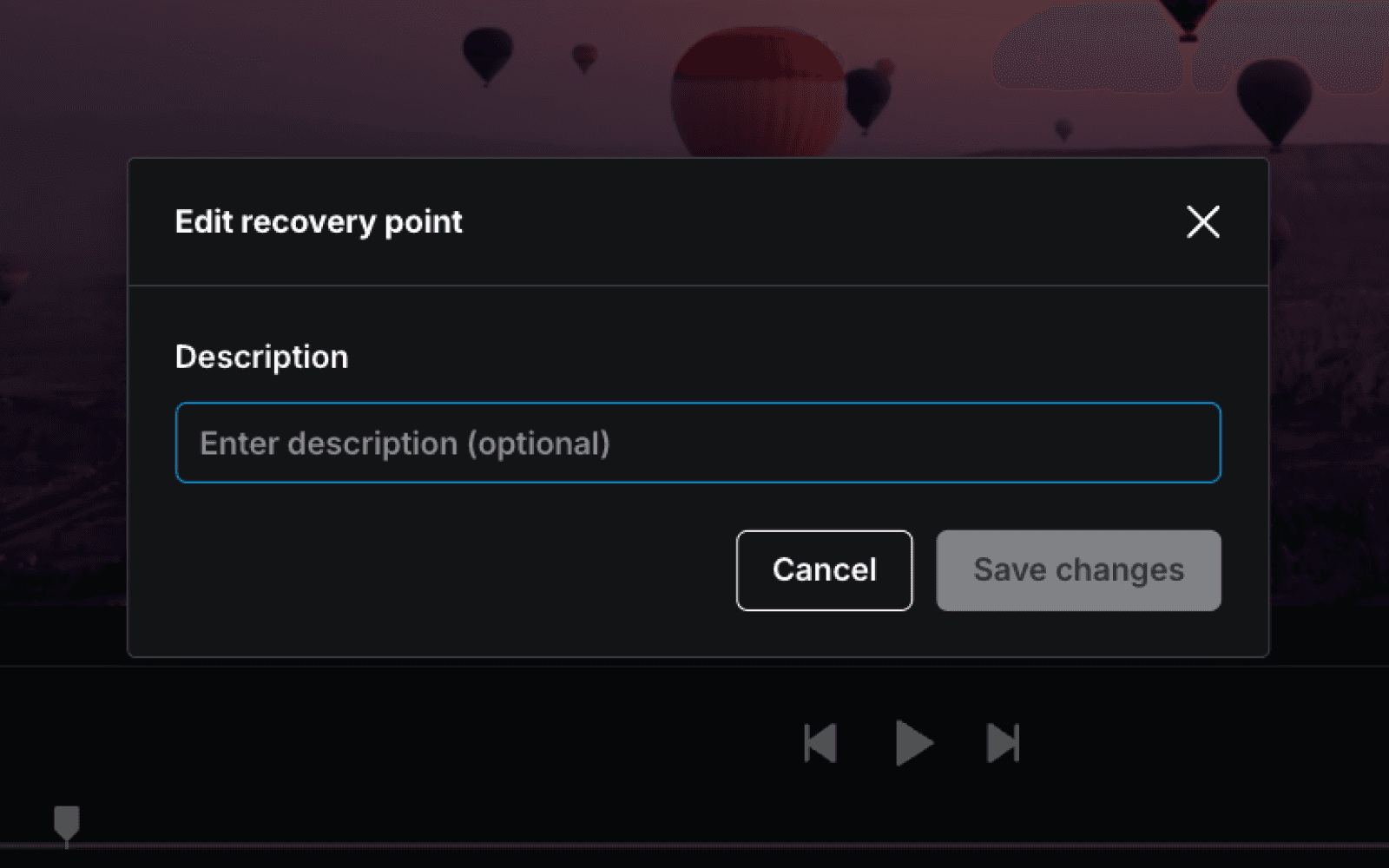
Select the three-dot menu next to any Recovery point to restore it, add a description, or delete it.
Naming a Recovery point takes ten seconds and saves everyone in your project from having to guess. One label and your whole team knows exactly what that state represents and whether it’s the right one to restore.
Automatic and manual saves
Everything in the panel when you first open it was saved automatically while you work so you always have a safety net to fall back on.
To save a manual point, hit the blue + button in the top-right corner of the panel, give it a name, and select Add Recovery point. It appears at the top of the panel straight away.
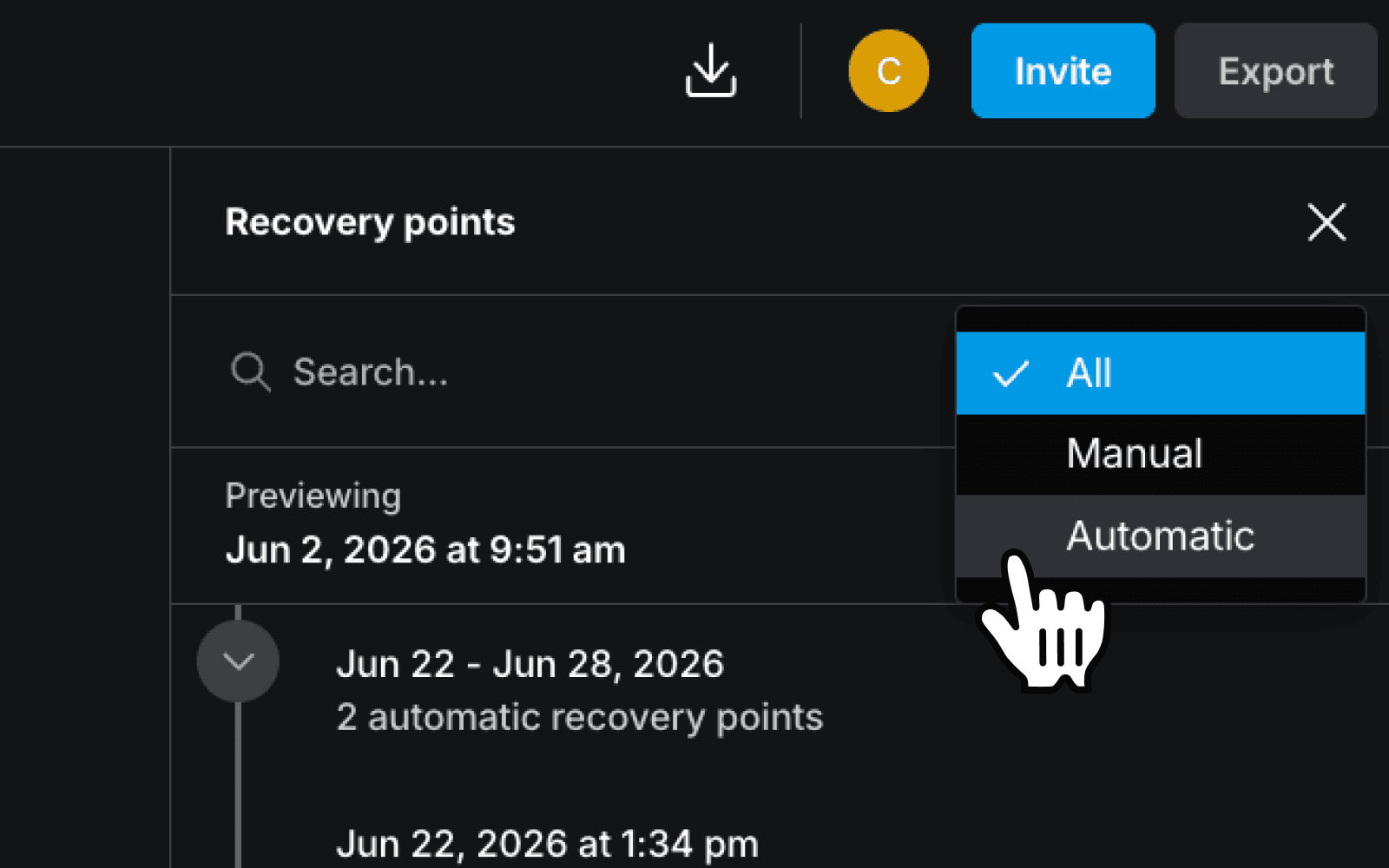
Use the dropdown next to the plus button to filter between all points, automatic or manual. The search bar will help you find a specific point by name to save time when the list gets long.
Duplicating a project
If you duplicate a project, none of the original’s Recovery points are transferred as the copy starts with a clean Recovery history.
Edit freely
There’s always a way back.
Recovery points exist so you can take the edit somewhere unexpected without the fear of losing work you can’t recover. Try something new. Change direction. Make bold choices.
Marty McFly needed a DeLorean to go back in time. You just need to hit Restore!
Updated on