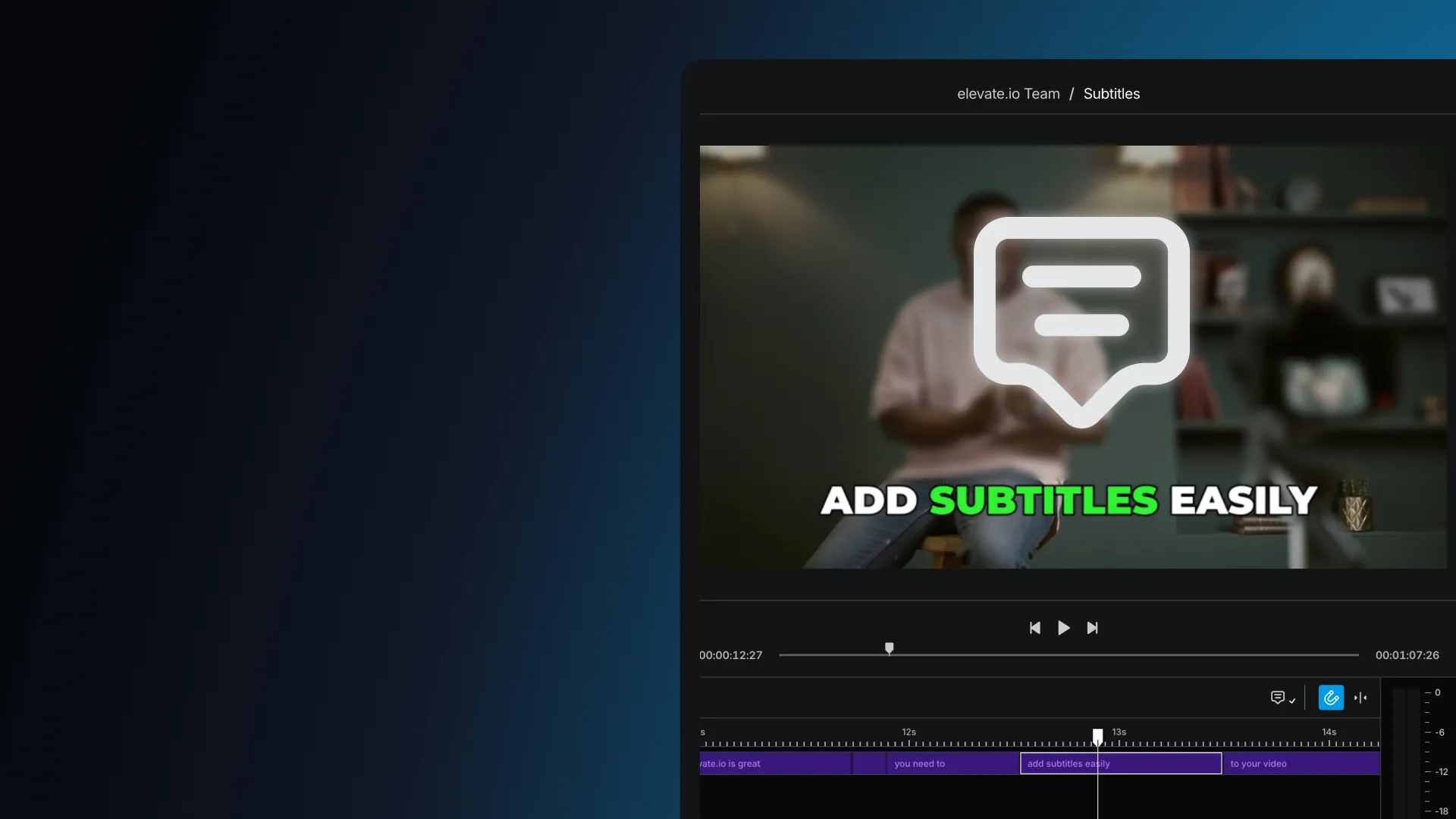
How to add subtitles to a video
Learn how to generate transcripts and add engaging subtitles easily and accurately in elevate.io.
Subtitles, also known as captions, are the lines of text that appear on screen to match what's being said in your video.
elevate.io has the most powerful and accurate subtitles because they are fully embedded and synchronized with the original media. So even if you go back to your clips and trim, cut, or rearrange them, your subtitles will stay perfectly in sync.
Here's a step-by-step guide on how to automatically generate and customize subtitles directly in elevate.io.
Transcribe your timeline
Once you have your clips on the timeline, click on the Subtitle sequence button in the toolbar, just above the timeline.
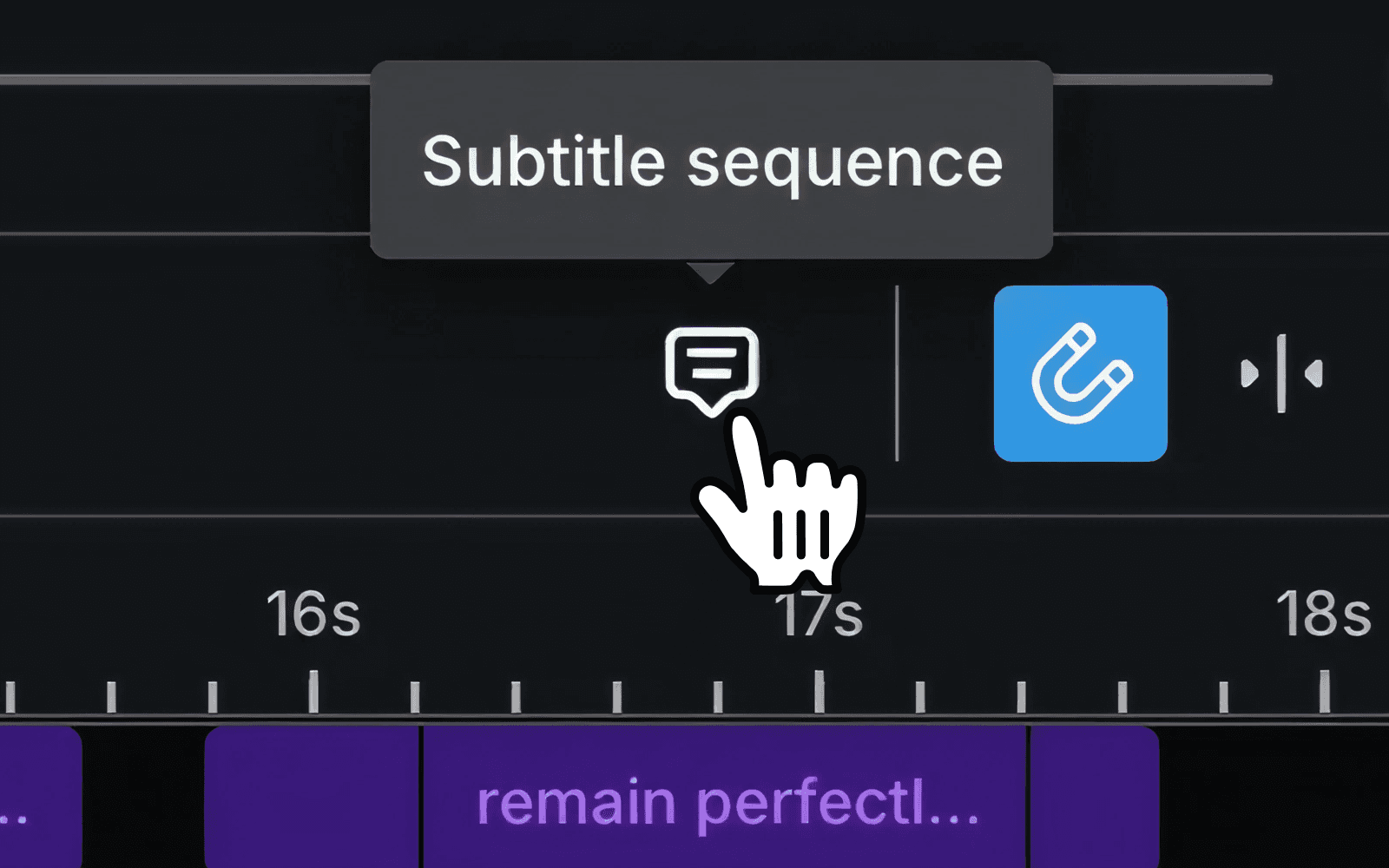
Generate subtitles
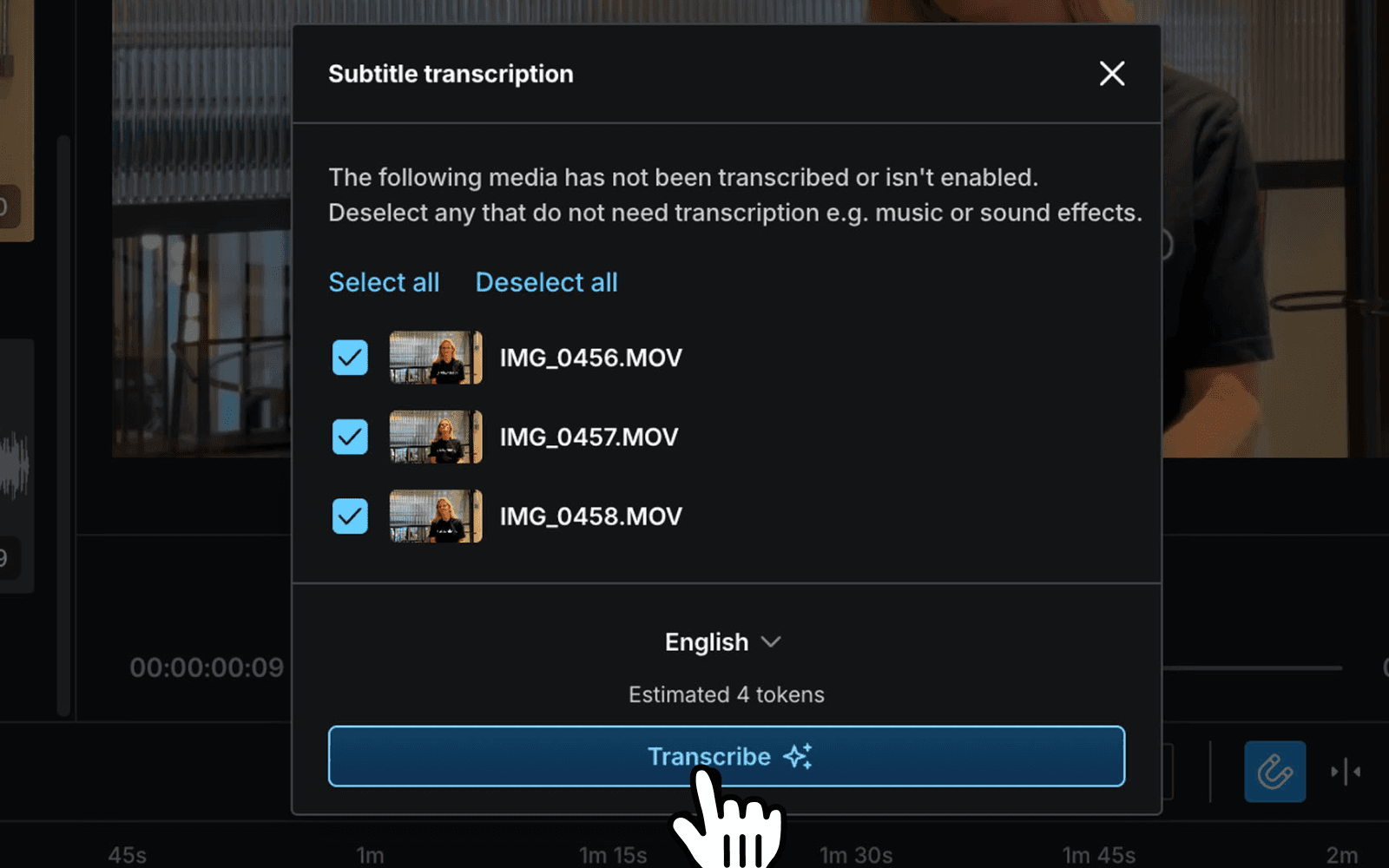
A modal will pop up, letting you choose which clips to transcribe, giving you full control. This is especially handy if you only want subtitles for part of your video.
Also, make sure to select the correct language so your subtitles are as accurate as possible.
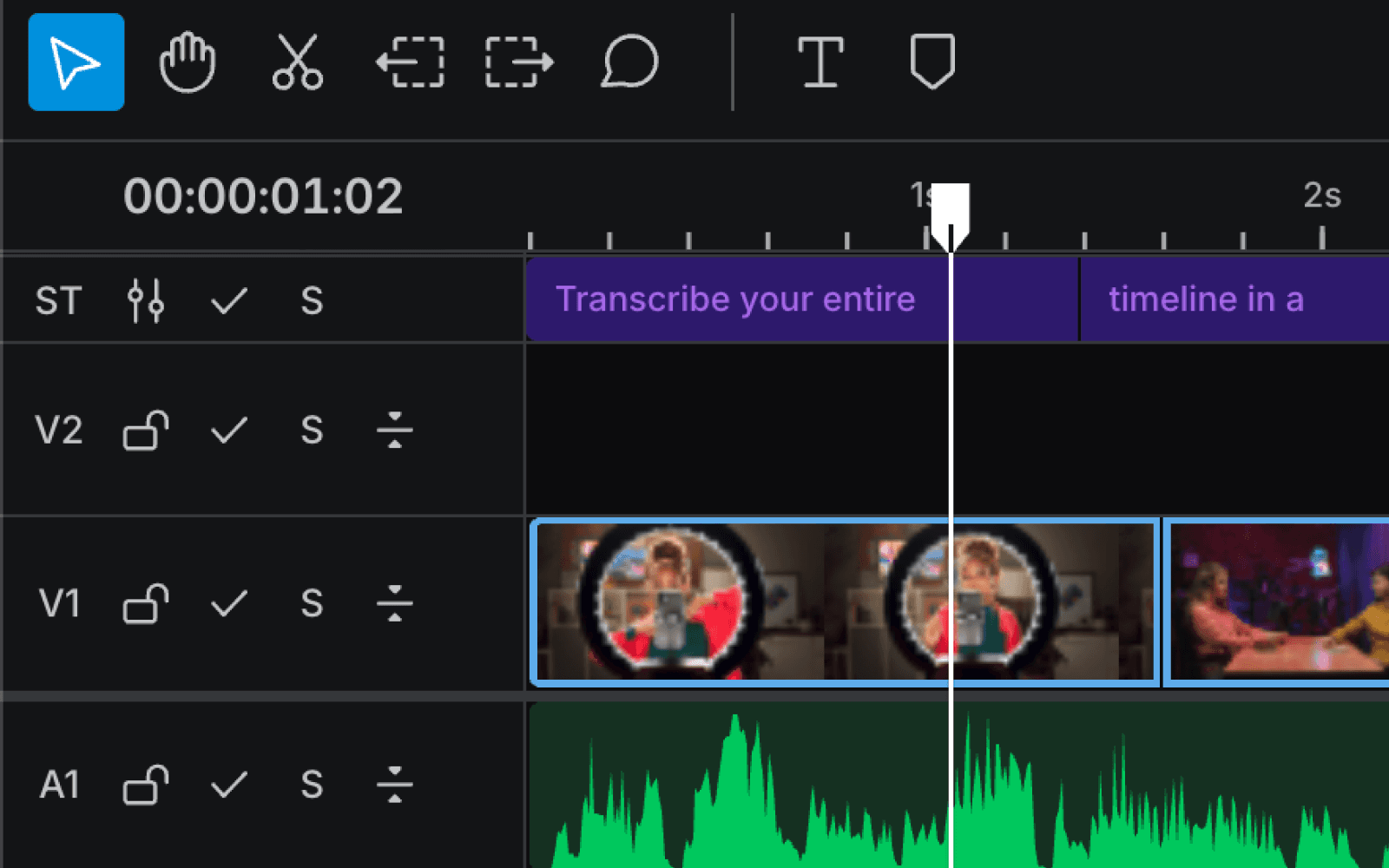
Once finished, a new subtitle track (ST) will appear at the top of your timeline.
Pick a subtitle template
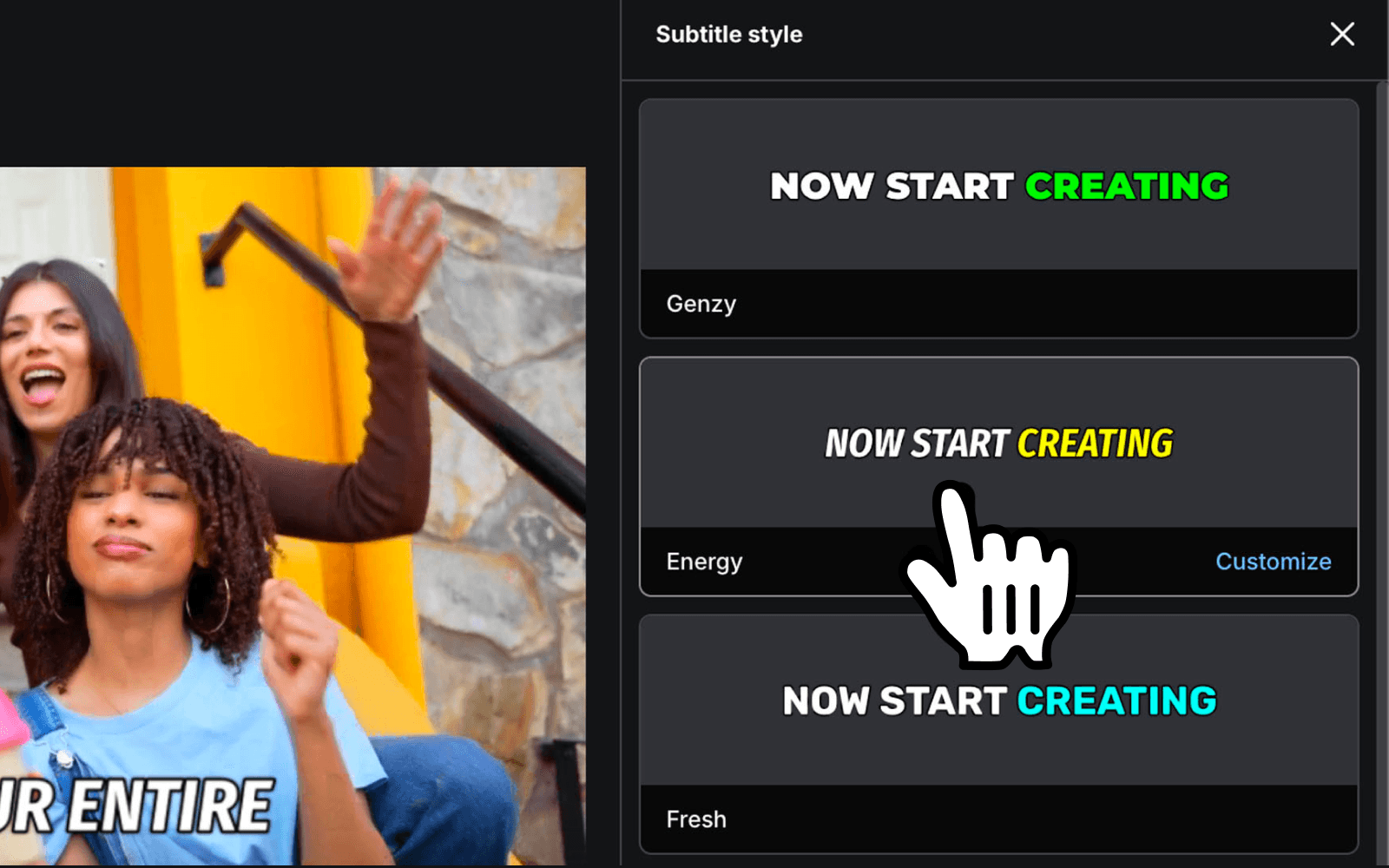
To style your subtitles, go to the 'Subtitle' tab in the top-right of the editor and click 'Change style'.
You'll find a bunch of built-in templates designed for different types of content. Select one to apply it instantly.
Customize subtitles
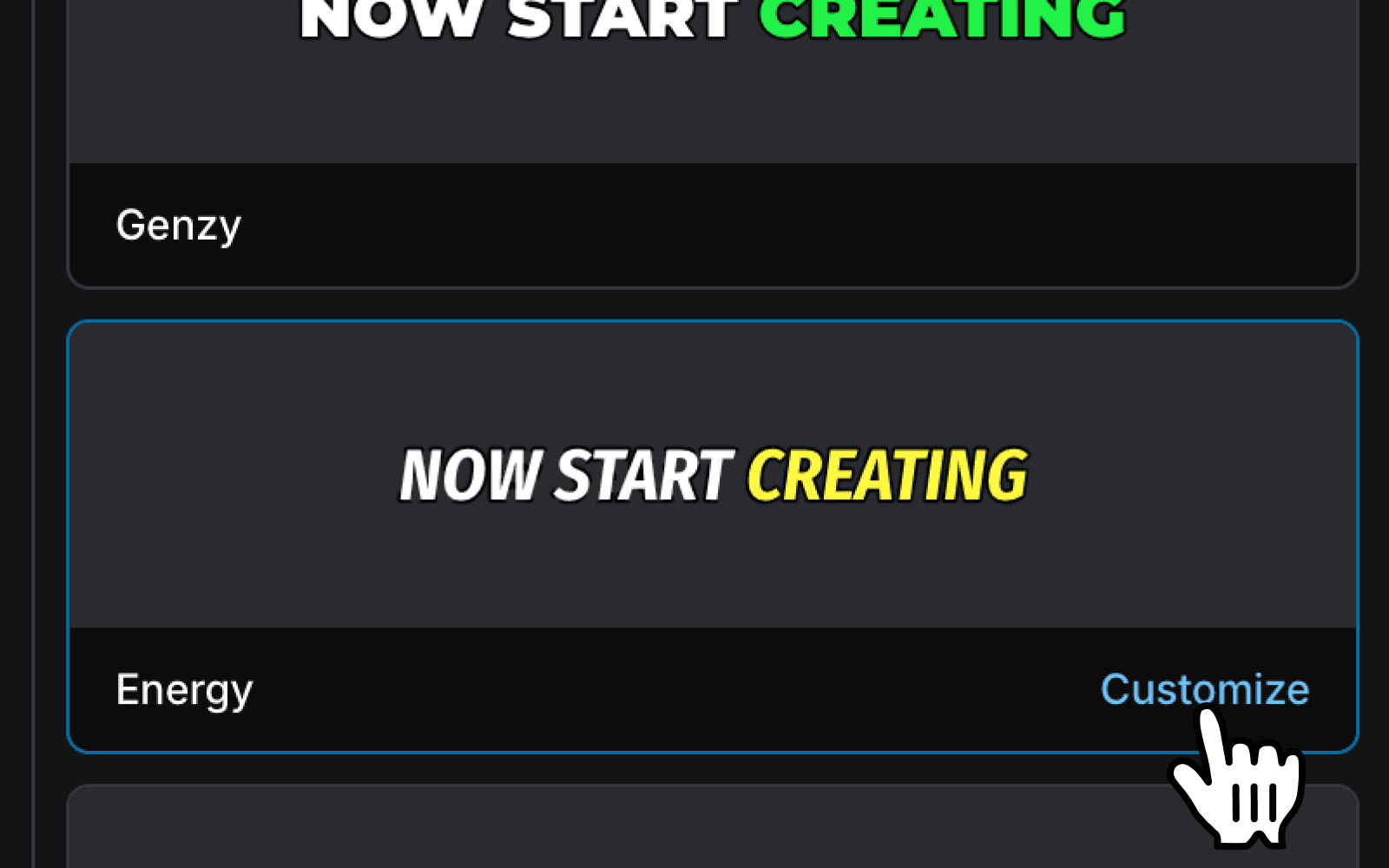
To further customize your subtitles, hover over the subtitle card and hit 'Customize' to open the full design panel. From there, you can adjust the font, size, color, highlights, and more.
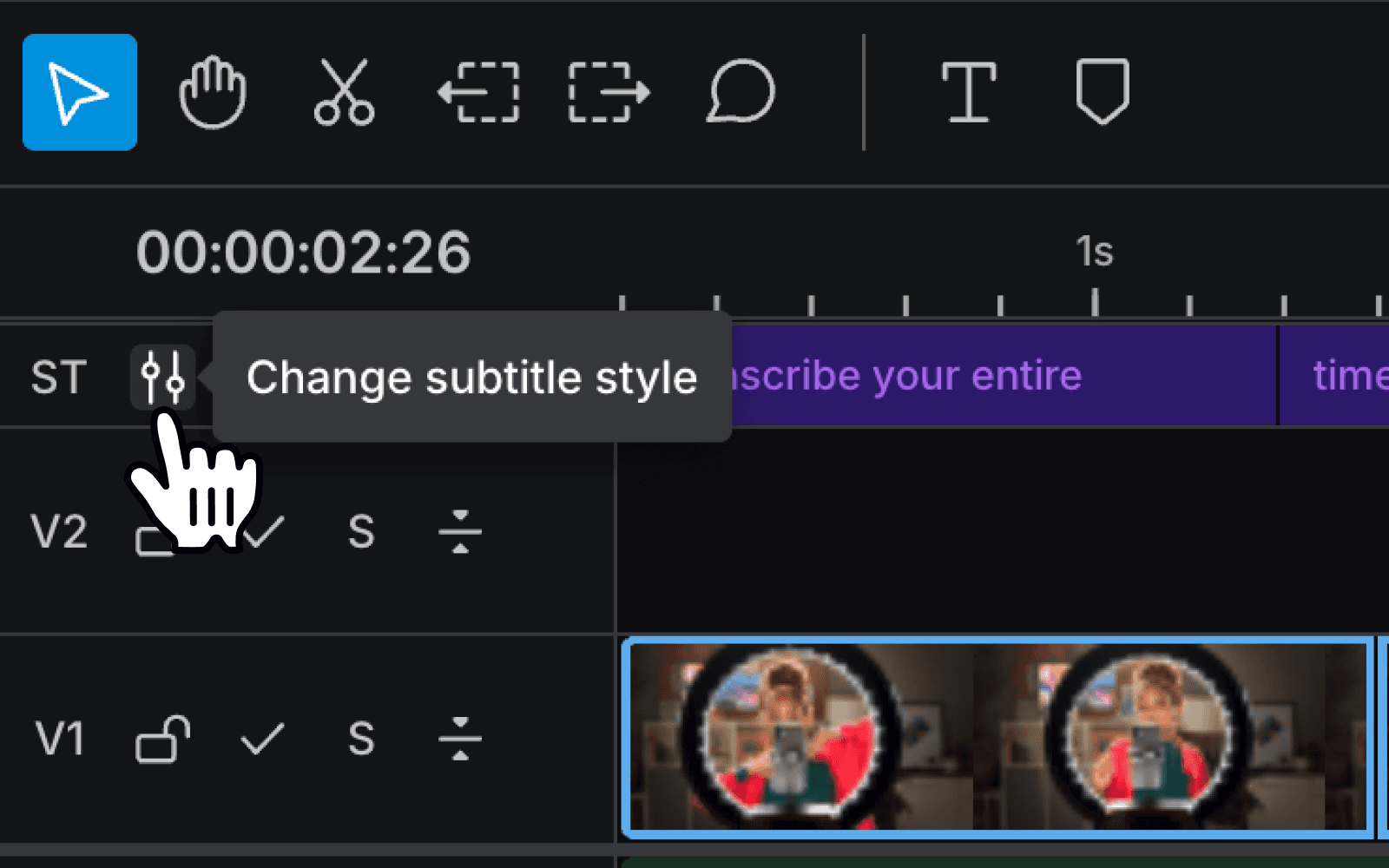
Alternatively, you can click the 'Change subtitle style' button directly on the ST track for a quick style swap.
Edit the transcript
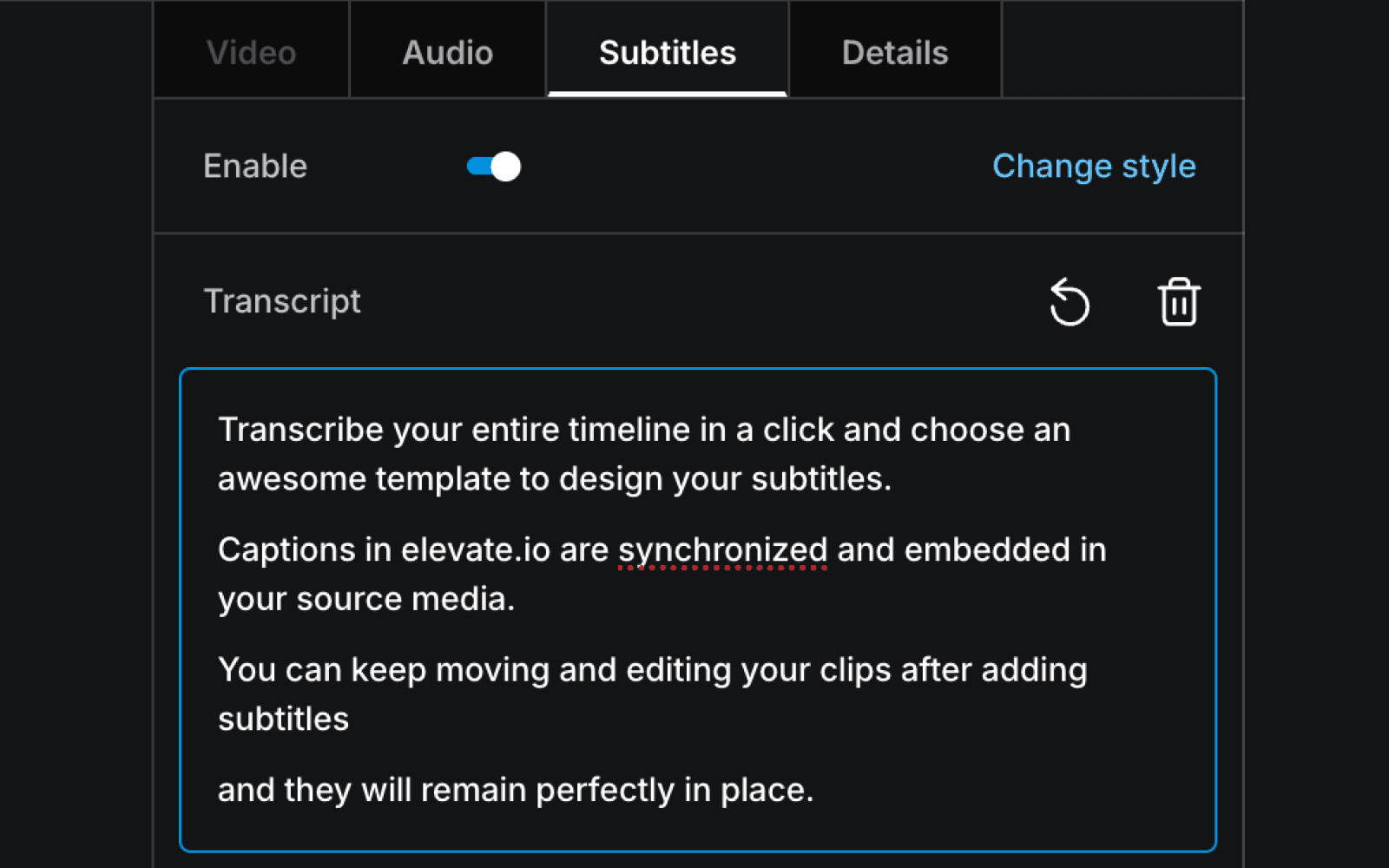
If you need to fix a typo or tweak the subtitles, just select the clip on the timeline, go to the 'Subtitle' tab, and update the transcript.
Best of all, your subtitles will stay perfectly in sync with the footage, so no re-timing is needed.
Fine-tune the timing
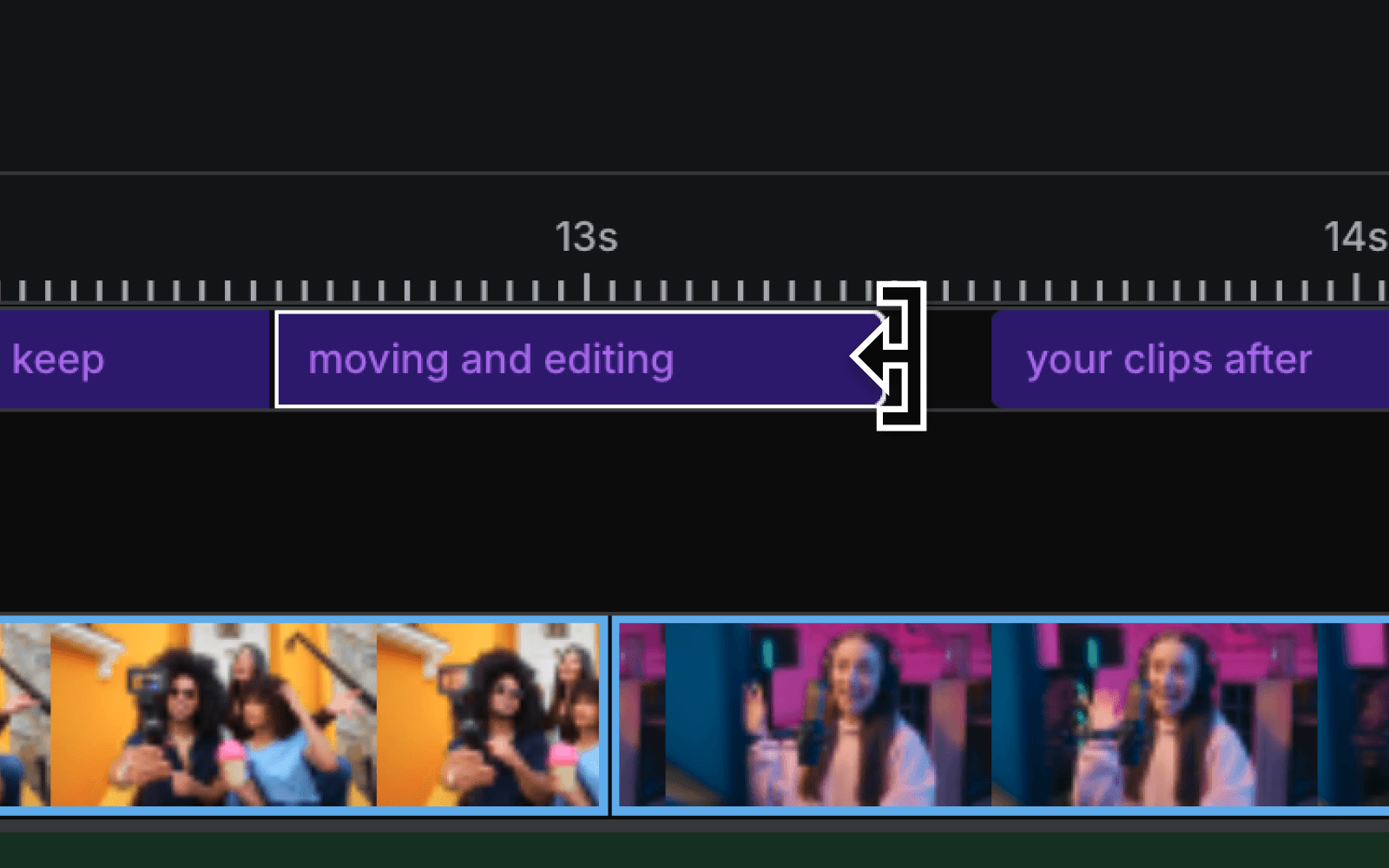
If you want to adjust when a subtitle appears or for how long it stays on screen, you can treat it like any other clip on the timeline - just trim or move it to wherever you need.
And that's it!
elevate.io's subtitles are fast, flexible and works exactly how it should - seamlessly.
Updated on